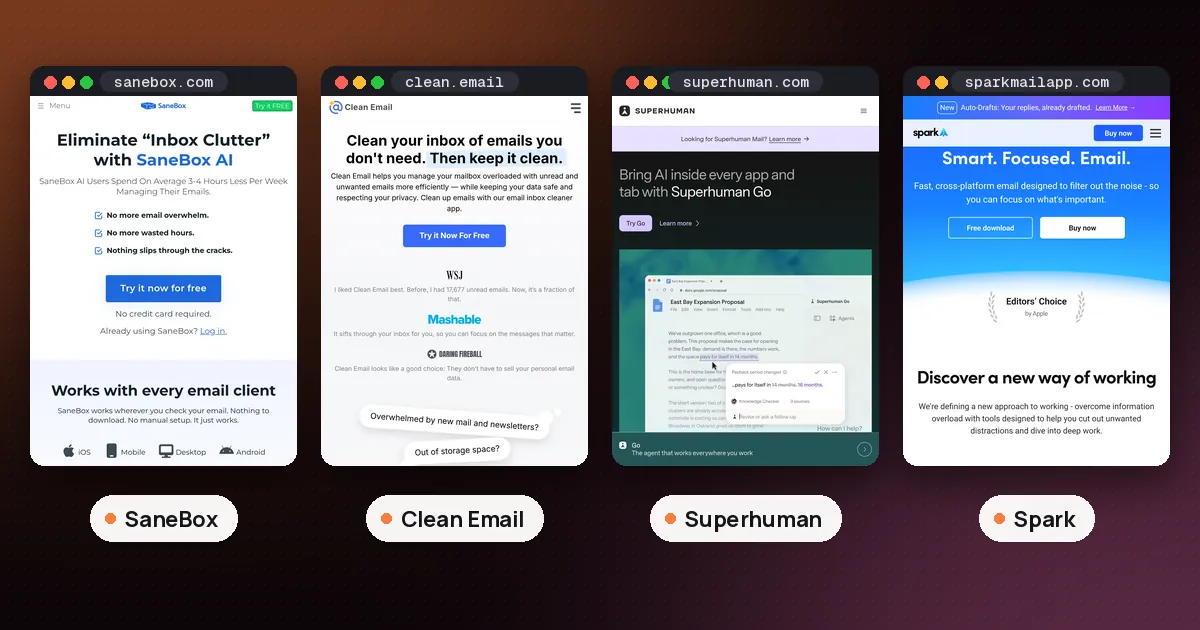
In the SaneBox vs Clean Email choice, pick SaneBox if your problem is new mail interrupting you every day and you want something that learns which messages matter without you writing rules. Pick Clean Email if your problem is the pile: years of newsletters, receipts and notifications you want to unsubscribe from and delete in bulk, then keep under control with rules you set yourself. Clean Email is also the cheaper way to start, because its free account lets you clean up to 1,000 emails, while SaneBox only offers a 7 day trial.
Both services connect to the mailbox you already have and work behind whatever email app you use, so neither asks you to switch to a new client. The difference is the job. SaneBox is a filter that watches incoming mail and quietly moves the low priority messages out of your inbox. Clean Email is a cleanup and rules tool that groups messages so you can act on thousands at once. This guide compares SaneBox and Clean Email using the SaneBox pricing page, the SaneBox FAQ, SaneBox's help article on Email Deep Clean, the Clean Email features page, Clean Email's help article on free accounts and trials and its App Store listing, all checked on October 31, 2026. We did not connect either service to a real mailbox for this guide.
SaneBox vs Clean Email at a glance
| Item | SaneBox | Clean Email |
|---|---|---|
| Main job | Filters new, low priority mail out of your inbox | Bulk cleanup, unsubscribing and automatic rules |
| How it decides | Learns from how you treat mail | Categories, suggestions and rules you approve |
| Cleaning old mail | Email Deep Clean scan by sender | Group by sender, date, size or category, then act |
| Unsubscribing | SaneBlackHole sends a sender away | Unsubscriber lists all subscriptions, with Pause |
| Unknown senders | SaneScreener (an optional feature) | Screener (premium) |
| Free option | 7 day trial, no free plan | Free account cleans up to 1,000 emails, plus a 14 day trial |
| Price from | $4.54 a month (Snack, billed every 2 years) | $9.99 a month for one account, cheaper yearly |
| Accounts | 1, 2 or 4 by plan, more on request | 1, 5 or 10 by plan |
How SaneBox filters your inbox
SaneBox connects to your mail server and studies your past behavior. Its FAQ lists the signals: which emails you open, which you answer, how quickly you do both, how often, and how far back your relationship with the sender goes. As new mail arrives, SaneBox asks the server to move anything unimportant into a folder called SaneLater. By default, mail from real people stays in your inbox. A Daily Digest summarizes what went into your Sane folders.
Because SaneLater is an ordinary server folder, it shows up in Gmail, Outlook, Apple Mail and your phone without installing anything. Training is just moving a message: drag something out of SaneLater and SaneBox won't make that mistake again. If you are nervous about mail going missing, Manual Mode leaves everything in the inbox until you train it. SaneBox also says that if its service goes offline, your mail still arrives in your inbox, just unsorted.
Beyond SaneLater, SaneBox sells extra filters it calls power tools. The pricing page lists SaneNoReplies, SaneDoNotDisturb, SaneBlackHole, SaneNews, SaneScreener, SaneCC, Reminders, Attachments, Custom Snooze and SaneNotSpam. Your plan sets how many you can switch on.
How Clean Email cleans up the mess
Clean Email starts from the opposite end. Instead of guessing what matters, it groups your mail so you can decide in bulk. Smart Folders gather messages from categories such as social networks, ride sharing, food delivery and online shopping. Cleaning Suggestions point at the kinds of mail people usually delete or archive. You can also sort everything by date, size, sender or recipient and then delete, archive, label or move thousands of messages at once.
The ongoing part comes from rules you approve. Clean Email's features page describes Block for a sender or a whole domain, Mute for noisy threads, Deliver to for routing a sender into a folder, and a rule that trashes mail once it reaches a set age. Keep Newest holds on to only the latest messages from a sender, which suits daily newsletters and order updates. Auto Clean lets you build more detailed rules from sender, domain, status and age. Clean Email keeps a log of every action it applies and sends activity summaries, so you can check that a rule isn't eating mail you wanted.
SaneBox email cleanup: Email Deep Clean
SaneBox does have a cleanup tool for old mail, so the two overlap more than they first appear. According to SaneBox's help article, Email Deep Clean scans your account for messages older than a date you choose and finds the contacts, newsletters, stores and websites that send you the most or the largest email. SaneBox emails you when the analysis is done. You then pick the senders you no longer need, confirm, and SaneBox moves those messages to your Trash. You can filter the list by size, date and type. It does not delete the contact from your address book. The pricing page lists Email Deep Clean in all three plans.
The difference is depth. Deep Clean works sender by sender on old mail. Clean Email offers several ways to slice your mailbox (categories, suggestions, size, age) and turns any of those views into a rule. If a clear out is the main thing you want, Clean Email gives you more control. If a one time sweep is a bonus on top of daily filtering, Deep Clean is enough.
Unsubscribing and blocking unknown senders
Newsletters are where Clean Email is strongest. Its Unsubscriber lists every subscription in one view so you can unsubscribe, pause or filter them in bulk. Clean Email says it detects senders even when they lack an unsubscribe link, and if a list ignores your request, its help page says messages from that list are moved to the trash automatically. Pause stops a list for a while without unsubscribing, and Read Later moves newsletters into their own folder with an optional daily or weekly summary.
SaneBox handles the same problem by moving mail rather than unsubscribing you. SaneBlackHole sends a sender you never want to hear from out of your inbox. The senders keep mailing you, though.
For unknown senders, both offer a screener. Clean Email's Screener holds mail from first time senders for your review, and you choose whether to screen mailing lists, automated messages, real people or any mix. SaneBox lists SaneScreener among its optional features, so on the cheaper plans it uses up one of your feature picks.
Privacy and what each one reads
Both companies say they do not read your messages. SaneBox's FAQ states that it only analyzes header data and never reads or stores the body of your emails, that your mail stays on your own server, and that your login credentials are encrypted and kept on a server unreachable from the public internet.
Clean Email's Unsubscriber page says the service processes only email headers to identify subscriptions, never message bodies or attachments, and automatically deletes temporary metadata after 45 days. It describes OAuth2 sign in and GDPR and CCPA compliance, and its plans page says all of its income comes from subscription fees rather than selling data.
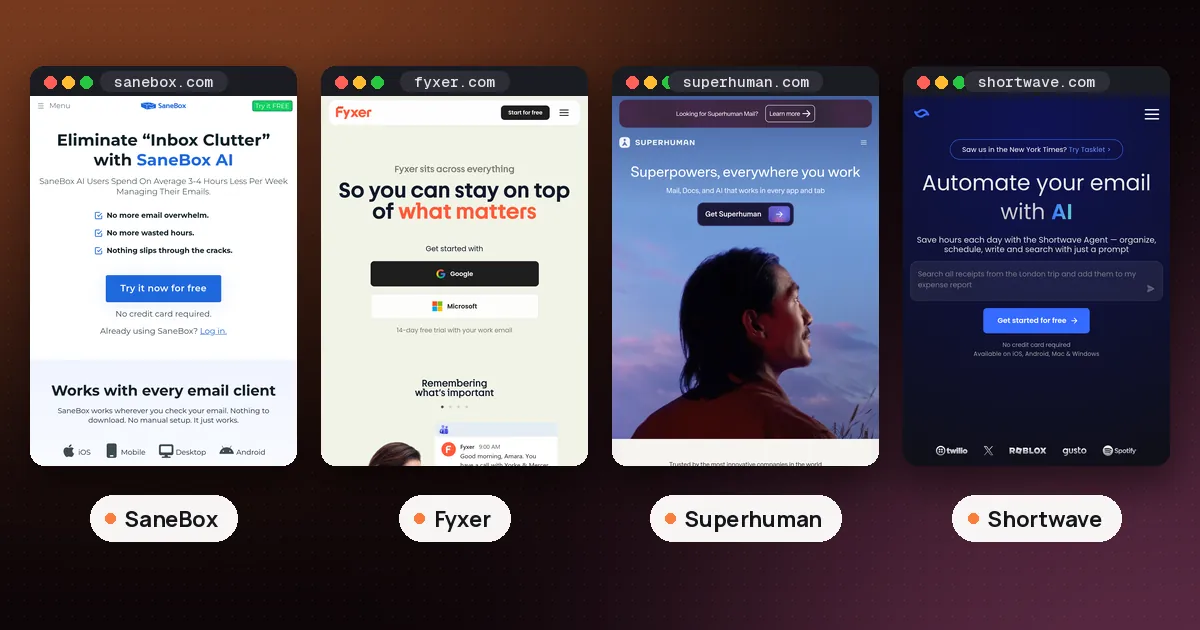
Neither one drafts replies. If you want that, compare an assistant instead: our SaneBox vs Fyxer guide covers that tradeoff.
Free plans, trials and prices
Is there a free option?
Clean Email has a free account. Its help center says you can clean up to 1,000 messages at no cost, using actions like moving, deleting, labeling and starring, and you can raise that number by turning on cleanup reminders. The free account does not include the Screener, sender and mailing list settings or Auto Clean. You can also start a 14 day trial of every premium feature with no credit card, which includes 25 unsubscribe actions. When the trial or a subscription ends, the account goes back to the free limits, so your premium rules stop running.
SaneBox has no free plan. Its pricing page offers a 7 day free trial with every feature for up to 4 email accounts, and its FAQ says canceling puts everything back the way SaneBox found it.
What each one costs
SaneBox sells three plans, billed monthly, annually or every two years. On the two year option, the pricing page shows Snack at $4.54 a month for 1 email account and 2 extra features, Lunch at $7.46 a month for 2 accounts and 6 features, and Dinner at $22.04 a month for 4 accounts with every feature and phone support. Feature picks are counted per account. Educational, nonprofit and government organizations get 25% off. Check the same page for monthly and annual rates.
Clean Email prices by the number of accounts, and every paid plan includes every feature. Its App Store listing says prices start at $9.99 a month for one account and that yearly plans save 75% on the monthly rate. Plans come in 1, 5 and 10 account sizes, and the 5 and 10 account plans can be shared with friends and family. One detail to watch: the help center says the in app Upgrade button goes to the default five account plan, so choose More Plans if you only need one. Clean Email's plans page showed prices in local currency when we checked, so confirm the figure you see before paying.
SaneBox vs Clean Email: who should pick which
- New mail keeps interrupting you. SaneBox. It filters in the background and only asks you to drag the odd message back.
- You have tens of thousands of old emails. Clean Email. Bulk actions and Smart Folders are built for a big clear out.
- Newsletters are the main problem. Clean Email, because the Unsubscriber actually unsubscribes, pauses or bundles lists.
- You hate writing rules. SaneBox, which learns from your behavior instead.
- You want to try before paying anything. Clean Email's free account, then its 14 day trial.
- You manage several family inboxes. Clean Email's 5 or 10 account plans can be shared; SaneBox covers up to 4 accounts on Dinner.
We would not run both on the same inbox at first. Each one moves mail by its own logic, and it gets hard to tell which tool filed what. A sensible order is a Clean Email cleanup, then cancel it and let SaneBox handle new mail if daily interruptions remain.
If you want AI help writing replies rather than sorting, a new email app may suit you better. Our best AI email assistant roundup compares Superhuman, Shortwave and Spark, and Gmail users should first read our Gmail AI Inbox guide to see what Google already sorts for free.
FAQ
Is Clean Email free?
Partly. A free Clean Email account lets you clean up to 1,000 emails, and you can earn more by turning on cleanup reminders. Premium tools such as the Screener and Auto Clean need a paid plan, though a 14 day trial with no card lets you test them.
Does SaneBox delete my emails?
Not on its own. SaneBox moves mail into folders such as SaneLater rather than deleting it. Email Deep Clean moves messages from senders you pick to your Trash, but only after you select them and confirm.
Does Clean Email read the content of my emails?
Clean Email says it processes only email headers to identify subscriptions, never message bodies or attachments, and deletes temporary metadata after 45 days. It also says it does not sell your data.
Which email providers do they support?
Clean Email's App Store listing names Gmail, iCloud, Yahoo, Hotmail, Outlook, Office 365, AOL, Zoho, Fastmail, GMX Mail and all IMAP accounts. SaneBox says it works with any client or service, including Gmail, Exchange, Outlook and Yahoo, except POP accounts, which don't support folders.
Can I use SaneBox and Clean Email together?
You can, since both work on the server side. We suggest using one at a time, though, because two tools moving the same mail by different rules makes mistakes hard to trace.
What happens if I cancel?
SaneBox says canceling puts everything back the way it found it. A Clean Email account drops back to the free limits, so premium rules like Auto Clean and the Screener stop running.