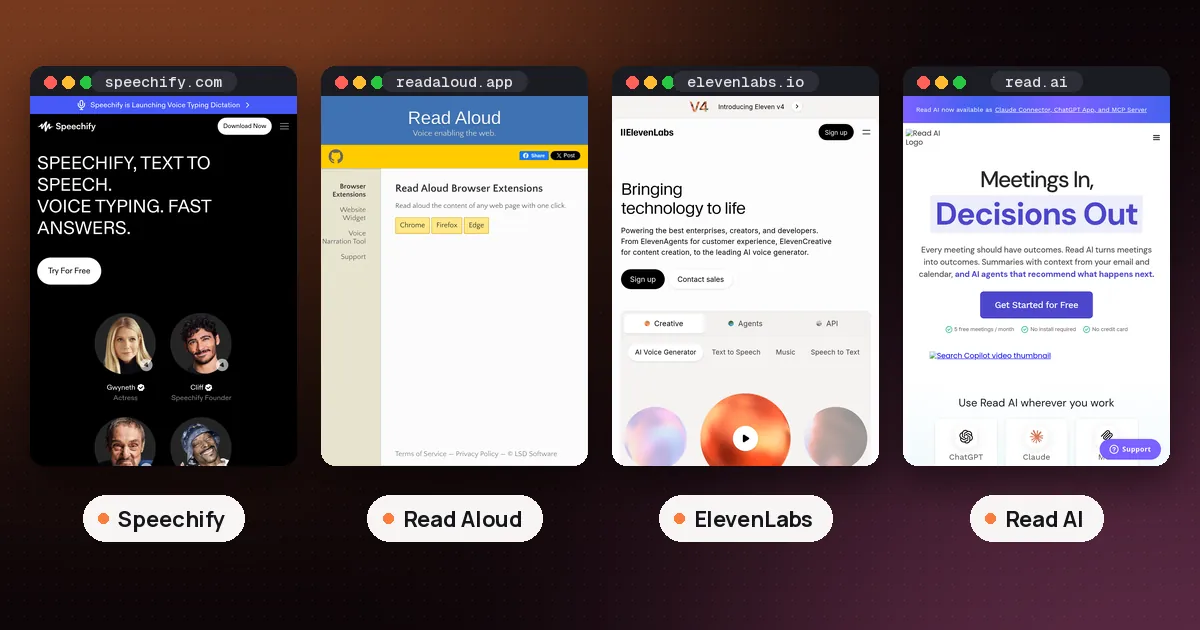
In Speechify vs Read Aloud, the free Read Aloud browser extension is the better pick if you mostly listen to web pages, PDFs and Google Docs on a computer and don't want to pay or sign in. Speechify is the better pick if you want apps on your phone, more natural voices at higher speeds, and the ability to scan a printed book and hear it. Read Aloud costs nothing for its standard voices; Speechify's free plan is capped at 1.5x with 10 basic voices, and Premium is $29 a month on monthly billing.
"Read Aloud" can mean two things. Most people searching it mean Read Aloud: A Text to Speech Voice Reader, an open source extension for Chrome, Firefox and Edge from LSD Software. Microsoft Edge also has a feature called Read aloud built into the browser. We cover both below, and we checked every fact on October 23, 2026 against the Read Aloud Chrome Web Store listing, the Read Aloud privacy policy, Speechify's pricing page and Microsoft's Reading mode help page.
Speechify vs Read Aloud at a glance
| Item | Read Aloud extension | Speechify |
|---|---|---|
| Price | Free with standard voices; premium cloud voices cost extra past a monthly free tier | Free plan; Premium $29 a month, or less on yearly billing |
| Voices | Your browser's built in voices, plus optional cloud voices (Google Wavenet, Amazon Polly, IBM Watson, Microsoft Azure, OpenAI) | 10 basic voices free; more than 1,000 voices in 60+ languages on Premium |
| Top speed | Adjustable in Options | 1.5x free; 5x on Premium |
| Where it runs | Chrome, Firefox and Edge extensions | iPhone, Android, Mac, Windows, web app, Chrome and Edge extensions |
| Account needed | No, unless you use premium voices | Yes |
| Printed books | No | Scan & Listen (listed as a Premium feature) |
| Source code | Open source on GitHub | Closed |
What each tool actually is
Read Aloud, the free extension
Read Aloud is a small browser extension that reads the current page aloud when you click its icon. Its store listing says it supports more than 40 languages and works on news sites, blogs, textbooks and course materials, and that it can also read PDFs, Google Docs, Google Play Books, Amazon Kindle and EPUB files (EPUB through a separate EPUBReader extension).
You control it from the toolbar or with keyboard shortcuts: Alt+P to play or pause, Alt+O to stop, Alt+Comma to rewind and Alt+Period to go forward (Option on a Mac, per the project's GitHub page). If you select text first, it reads only the selection. Voice, speed, pitch and text highlighting live on the Options page, which you open with the gear button once playback is stopped.
The project is open source and actively maintained. The Chrome listing showed version 2.27.0, updated October 23, 2026, with about 3,600 ratings. On Firefox, Mozilla's addon directory reported roughly 233,000 average daily users the same day.
Speechify, the paid reading app
Speechify is a full reading platform rather than a single extension. It has apps for iPhone, Android, Mac, Windows and the web, plus Chrome and Edge extensions, and your library syncs between them. Its homepage FAQ lists PDF, EPUB, DOCX, XLSX and TXT files, web links, scanned pages and pasted text as things you can add.
Speechify has also grown well past reading. The pricing page lists AI summaries and chat, AI podcasts, voice typing and a voice AI assistant on Premium, along with Google Drive, Dropbox and OneDrive integrations. If you only want a page read to you, most of that is extra.
Voices and reading speed
This is where the two differ most, and it decides the choice for many people.
Read Aloud's default voices are the ones your browser and operating system already have. On a recent computer they're clear enough for articles and notes, but they sound like a computer. To get more natural voices, Read Aloud lets you pick cloud voices from Google Wavenet, Amazon Polly, IBM Watson, Microsoft Azure and OpenAI. The store listing says these may need an in app purchase or your own API key. The GitHub guide to premium voices walks through creating a key in your Google Cloud or AWS account and pasting it into the extension's settings.
Speechify's free voices are limited too. Its pricing page says the free plan has 10 voices that it calls robotic sounding, at speeds up to 1.5x. Premium is where Speechify pulls ahead: more than 1,000 natural voices in more than 60 languages, and listening at up to 5x.
So if voice quality matters and you don't want to manage API keys, Speechify Premium is the simpler route. If you're fine with system voices, Read Aloud gives you the same basic experience as Speechify's free plan without an account.
Price: what's free and what isn't
Read Aloud is free with standard voices, with no account and no trial. Its privacy policy says premium voices require a purchase once your usage goes past a monthly free tier, and that you sign in only if you use them. The extension shows current premium prices inside its settings, so check there rather than trusting a third party list.
Speechify has a free plan with no end date, and Premium at $29 a month on monthly billing. The pricing page says yearly billing saves 60%. Students should read our guide on whether Speechify is free for students, since some schools license Premium for everyone.
Privacy and accounts
Read Aloud has a clear privacy story for its free mode. Its policy says that with the standard voices, speech is generated locally on your computer and the text is never sent to the internet. You don't need to sign in, and it says it doesn't track browsing history. If you switch to a premium voice, the text goes to the developer's cloud server for synthesis, which may cache it briefly but doesn't store it permanently.
Speechify works through an account, and the files you add live in your cloud library so they sync across devices. That's the point of the product, but it means your documents are stored with Speechify. For confidential work documents, Read Aloud with standard voices is the more private option.
How to use Speechify to read a book
Book reading is the main reason people compare these two, so here's what each can and can't do.
Reading an ebook file
Upload the file. Speechify's FAQ says you select New in the web app, tap Upload on iPhone or Android, or click Add Files on the Mac app, and EPUB and PDF are both supported. The book then sits in your library on every device. Read Aloud can read EPUB only inside a separate EPUBReader extension in your browser, which is fine at a desk but no use on a walk.
How to use Speechify to read a Kindle book
Kindle books bought from Amazon aren't files you can upload: Speechify's supported formats don't include Kindle's own book format. The practical route for both tools is Kindle for Web. Open your book at read.amazon.com in Chrome or Edge, then press play on the Speechify extension or the Read Aloud icon. Read Aloud's listing names Amazon Kindle as a supported source. Results on Kindle for Web can change when Amazon updates its reader, so try a free sample before you pay for anything on this basis.
How to use Speechify to read a physical book
This is something Read Aloud can't do at all. In the Speechify phone app, Speechify's scanning guide says you tap the plus button, choose Scan Pages, and pick Book instead of Single Page. Book mode captures two facing pages at once. Turn the page and capture again until the chapter ends. Then tap the photo icon to review and crop, and press Save and Listen. All the pages from that session become one file in your library.
Speechify's guide suggests even lighting, a matte surface to avoid glare, and a tight frame around the text. Its pricing page lists Scan & Listen as a Premium feature, so plan on paying if this is your main use.
Edge's built in Read aloud
If you use Microsoft Edge, you may not need either extension. Microsoft's help page says you can press F9 to open Reading mode on supported pages and select Read aloud, or use the three dots menu, then More tools, then Read aloud. A toolbar lets you play, skip paragraphs, and change the voice and speed under Voice options. Microsoft's Read aloud feature page says it works online and offline, with only a few voices available offline, and that you can select text and right click to hear just that selection.
Microsoft describes its voices as natural sounding, and they cost nothing. The catch is that it only works in Edge.
Who should choose which
Choose Read Aloud if you read on a laptop, mostly listen to articles, course pages, PDFs and Google Docs, and want something free and private that works without an account. It's also the natural pick on Firefox, since Speechify lists browser extensions only for Chrome and Edge.
Choose Speechify if you listen on your phone, want to scan printed pages, need natural voices without setting up API keys, or want to listen faster than the free plan's 1.5x cap. Long listening sessions are where Premium earns its price.
Try something else if voice quality is the priority and you mostly listen on a phone. ElevenLabs makes the ElevenReader app, which we compare in Speechify vs ElevenReader. For saving articles to listen to later, see our best read it later app picks, and students can find more free options in best AI tools for students.
Our verdict
Install Read Aloud first. It's free, it takes a minute, and it tells you quickly whether listening to your reading works for you. If you find yourself wanting better voices, faster speeds, a phone app or the ability to scan a printed textbook, that's when Speechify Premium is worth paying for. If you live in Edge, try its built in Read aloud before installing anything.
FAQ
Is the Read Aloud extension free?
Yes. Read Aloud is free with your browser's standard voices and needs no account. Premium cloud voices have a monthly free tier, after which they need a purchase or your own Google Cloud or AWS API key.
Is Read Aloud the same as Read AI?
No. Read Aloud is a text to speech browser extension. Read AI is a different company that makes an AI meeting assistant for summaries and notes from your calls. The names are similar, but they do unrelated jobs.
Is Speechify better than Read Aloud?
For phone listening, scanning printed books and natural voices at high speed, yes, but you pay for Premium to get those. For listening to web pages and PDFs on a computer, Read Aloud does the core job for free.
Can Read Aloud read Kindle books?
Its Chrome Web Store listing says it can read Amazon Kindle content in the browser. Open the book in Kindle for Web and click the Read Aloud icon. It can't read the Kindle phone app or printed books.
Does Read Aloud send my text to a server?
Not with the standard voices. Its privacy policy says speech is generated locally and the text never leaves your computer. If you choose a premium cloud voice, the text is sent to the developer's server for synthesis.
Does Speechify work on Firefox?
Speechify lists extensions for Chrome and Microsoft Edge, plus its web app, which you can open in any browser. Read Aloud has a dedicated Firefox addon.