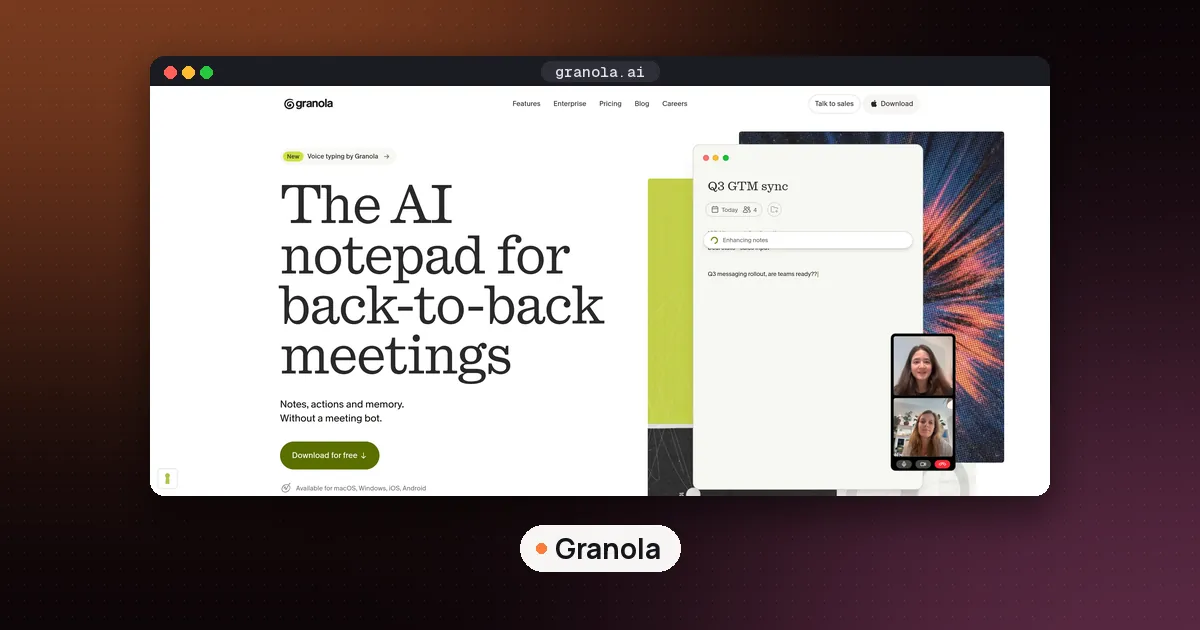
Granola voice typing is a free dictation tool built into the Granola desktop app for Mac. You click into any text field, hold the Fn (globe) key, speak, and let go: Granola removes filler words, adds punctuation and paragraphs, and pastes clean text at your cursor. It works in Gmail, Slack, ChatGPT, Claude and any other Mac app, it is included on every Granola plan with no word limit, and it is still labeled beta. Windows, iPhone and Android versions are announced as coming soon.
Granola, best known as a meeting note taker, launched the feature on October 29, 2026 (TechCrunch). Everything below was checked on October 30, 2026 against Granola's own Voice Typing help article, its pricing page and the voice typing product page. We have not used the feature ourselves yet, so treat menu names as Granola describes them and check the help center if your screen looks different.
What Granola voice typing does
Voice typing turns speech into finished text in whatever app you are using. It is not a raw transcript. According to Granola's help center, it:
- removes filler words such as "um" and "uh" and accidental repeats
- adds punctuation and splits separate thoughts into paragraphs
- turns spoken lists into bullets or numbered lists
- keeps your wording rather than rewriting your message
Granola is clear that the tool never answers or acts on what you say. If you dictate "Write a reply to Sam about the launch" into ChatGPT, that sentence is what gets pasted, and ChatGPT does the rest. That makes it handy for long AI prompts.
It is also separate from meeting notes. Voice typing does not start a meeting transcript or add to one. If you want Granola to capture a call, you still use its notepad, which we cover in Granola vs Otter.
Is Granola voice typing free?
Yes. Granola's pricing table lists voice typing as included on Basic ($0), Business ($14 per user per month) and Enterprise ($35 per user per month). The product page says "Unlimited words, for free," and TechCrunch reported that it is available on all plans without limits.
The paid plans add things that matter for meetings, not dictation: unlimited meeting history (Basic keeps 30 days), integrations such as Notion and HubSpot, API access, and admin controls. One small difference for teams: a workspace wide dictionary is listed only on Business and Enterprise. Each person still has a personal dictation dictionary on any plan.
How to set up Granola voice typing on a Mac
You need the Granola desktop app for Mac and a free account. Then follow Granola's setup steps:
- Open Granola, click your workspace name in the bottom left corner and choose Settings.
- Open Voice typing and turn on Enable Voice Typing.
- Allow Accessibility for Granola in macOS System Settings when asked. Granola needs it to detect your shortcut, read context from the app you are in and paste text into other apps.
- Allow microphone access and let Granola check that it can hear you.
- Test the shortcut and try a first dictation.
Granola has to stay open in the background. Its troubleshooting page says dictation stops working if you quit the app.
How to dictate: hold, tap twice or cancel
The basic gesture is simple:
- Click into the text field where you want the words.
- Press and hold the shortcut (Fn, the globe key, by default) and speak. A small pill with a waveform appears at the bottom of the screen while Granola listens.
- Let go. Granola finishes the text and pastes it in.
For longer messages, double tap the shortcut instead of holding it. Dictation keeps running until you press the shortcut again or finish from the pill. One dictation can last up to 20 minutes; at that point Granola stops and pastes what it has.
Press Esc to cancel at any point, even while Granola is still cleaning up your text. Nothing is pasted, and cancelled dictations are not saved to your history.
Changing the Fn shortcut
While Fn is your shortcut, Granola turns off the normal macOS action for the globe key (such as opening the emoji picker) so the two don't clash, and restores it when you turn dictation off or pick a different key. To change it, go to Settings > Voice typing, click the keys next to Shortcut and press the key or combination you want. Reset goes back to Fn. Common editing shortcuts such as Cmd+C, Cmd+V, Cmd+Z and Cmd+Tab are not allowed.
Dictation styles, screen context and your dictionary
Three settings shape how your text comes out.
Screen context is on by default. Granola reads text from the app you are dictating into, through macOS Accessibility rather than screenshots, and skips password fields. It uses that text to spell names correctly (such as the person you are replying to) and to match the format of the app. In email it separates the greeting and sign off and groups thoughts into paragraphs. In Slack it keeps messages short. In code editors and terminals it keeps technical terms exactly as written. In a one line field like a subject line or search box, it leaves out line breaks and the final period.
Styles control capitalization and punctuation for four kinds of apps: email (Gmail, Outlook, Apple Mail, Superhuman), work messages (Slack, Microsoft Teams, Google Chat), personal messages (Messages, WhatsApp, Telegram, Signal, Discord) and everything else, including ChatGPT and Claude. Each starts on Automatic. You can switch a row to Formal, Casual or Excited, and personal messages also offer Very casual, which is all lowercase with no periods. Granola's styles article says styles never change your words, and they need screen context turned on.
Dictionary is where you add names and jargon, up to 50 characters and six words per term. If you fix a misspelled name right after dictating, Granola can learn it for next time (you can turn Learn from your corrections off). The dictation dictionary is separate from the jargon list used for meeting transcripts, so add important terms to both.
Language and microphone tips
Choose your languages under Language in the voice typing settings. If you switch between languages mid sentence, pick Auto detect; Granola keeps each part in the language you spoke and does not translate. A built in or wired microphone works best. Granola marks Bluetooth microphones as less reliable. Mute audio while dictating is on by default, so music or a video doesn't leak into your text.
Privacy: what leaves your Mac
Dictation touches email and private chats, so read this part. Granola's dictation history and privacy page says:
- Granola only listens from the moment you press the shortcut until you finish or cancel.
- To produce text it sends your audio, your dictionary and language, and (with screen context on) limited text from the current app to its transcription and AI providers.
- Those providers do not use your dictations to train their models.
- Your history of past dictations is stored only on your Mac. It is not synced to other devices or your Granola account.
- Audio is kept only when a dictation fails (for example, your connection drops), so you can retry. That audio is encrypted, stays on the Mac and is deleted after 24 hours. Audio from successful dictations is never kept.
Under Local data storage you can keep history until you delete it (the default), delete it after 24 hours, or never store anything locally, in which case failed dictations can't be retried. If you don't want Granola reading your screen at all, turn off screen context; dictation still works, but styles and app specific formatting switch off.
Two limits to know. Dictation needs an internet connection, so it is not an offline tool. And separately from dictation, Granola's account setting Use my data to improve models for everyone controls whether Granola may use anonymized data to improve its own services; you can switch it off in Settings > Preferences. For how Granola handles meeting audio, see does Granola record audio.
Granola vs Wispr Flow and other dictation apps
TechCrunch framed the launch as Granola moving into Wispr Flow's territory, months after Wispr added its own meeting note taker. Here is how they compare on the facts each vendor publishes today.
| Item | Granola voice typing | Wispr Flow | macOS Dictation |
|---|---|---|---|
| Price | Free on every plan | Free plan; Pro $15/user/mo ($12 billed annually) | Free |
| Free limit | No word limit | 2,000 words a week on desktop | No timeout |
| Platforms | Mac now; Windows, iOS, Android coming | Mac, Windows, iOS, Android | Mac |
| Cleanup | Fillers removed, app aware formatting | Fillers removed, dictionary and snippets | Auto punctuation |
| Works offline | No | No (internet required) | Varies by Mac and setting |
Wispr Flow's figures come from its pricing page, which lists 2,000 words a week on desktop and limited weekly use on mobile for free users, and unlimited dictation on Pro. Wispr's big advantage today is reach: it already runs on Windows and phones, while Granola's version is Mac only.
Apple's own Dictation on Mac is free, has no time limit, and inserts commas, periods and question marks in supported languages. Apple says that with Apple Intelligence in macOS 27, dictation uses an on device model to improve spelling, punctuation and capitalization in English on M3 and later Macs with at least 12GB of memory. It does not apply per app styles or a cleanup pass the way Granola does.
If you need offline dictation or Linux, Granola is the wrong pick. Our Wispr Flow alternatives guide covers offline options such as Superwhisper and Handy, and Fireflies Talk, another note taker that added free dictation. For a head to head of the two best known paid apps, read Wispr Flow vs Superwhisper.
Who should use it
Granola voice typing makes the most sense if:
- you are on a Mac and already use Granola for meetings, since it costs nothing extra
- you hit Wispr Flow's free weekly word cap and don't want to pay for Pro
- you write long prompts for ChatGPT or Claude and want them punctuated and split into paragraphs
- you answer a lot of email and Slack and like formatting that matches the app
Skip it, or wait, if you work on Windows or need dictation on your phone today, if you must stay offline, or if company policy blocks apps that read screen text through Accessibility. If what you really want is spoken notes turned into finished summaries rather than typing in place, see our AI note taker for voice to text picks.
Fixing common problems
Granola's troubleshooting page covers the usual issues:
- Nothing happens when you press the shortcut. Check that dictation is enabled, that Granola is open, and that the shortcut matches. If Accessibility is already allowed, toggle Granola off and on in System Settings > Privacy & Security > Accessibility.
- Text didn't paste. If Granola can't paste, it copies the text and the pill tells you. Click into the field and press Cmd+V. Keep the field selected until text appears, or copy it from History.
- Wrong words or names. Use a wired or built in mic, check the language setting, add the term to your dictionary, and keep screen context on.
- Formatting looks off. Change the style for that kind of app, or turn screen context back on if styles are greyed out.
FAQ
Is Granola voice typing free?
Yes. Granola lists voice typing as included on its Basic (free), Business and Enterprise plans, and its product page says unlimited words for free. You need a Granola account and the Mac desktop app.
Does Granola dictation work on Windows or iPhone?
Not yet. As of October 30, 2026, voice typing is in beta on the Mac desktop app only. Granola says Windows, iOS and Android are coming soon but has not given dates.
How do I change the Granola dictation shortcut?
Go to Settings > Voice typing, click the keys next to Shortcut and press a new key or combination. Reset returns it to Fn. Cmd+C, Cmd+V, Cmd+Z and Cmd+Tab can't be used.
Does Granola voice typing work offline?
No. Granola's troubleshooting page says dictation needs an internet connection. If the connection drops mid dictation, Granola can keep the audio on your Mac for up to 24 hours so you can retry.
Does Granola keep my dictation audio?
Only for failed dictations, so you can retry them. That audio is encrypted, stays on your Mac and is deleted after 24 hours. Audio from dictations that worked is never kept, and you can choose to store nothing locally.
Is Granola voice typing better than Wispr Flow?
For a Mac user who wants unlimited free dictation, Granola is the cheaper choice today. Wispr Flow is the better fit if you need Windows, iPhone or Android now, or team features like shared snippets.