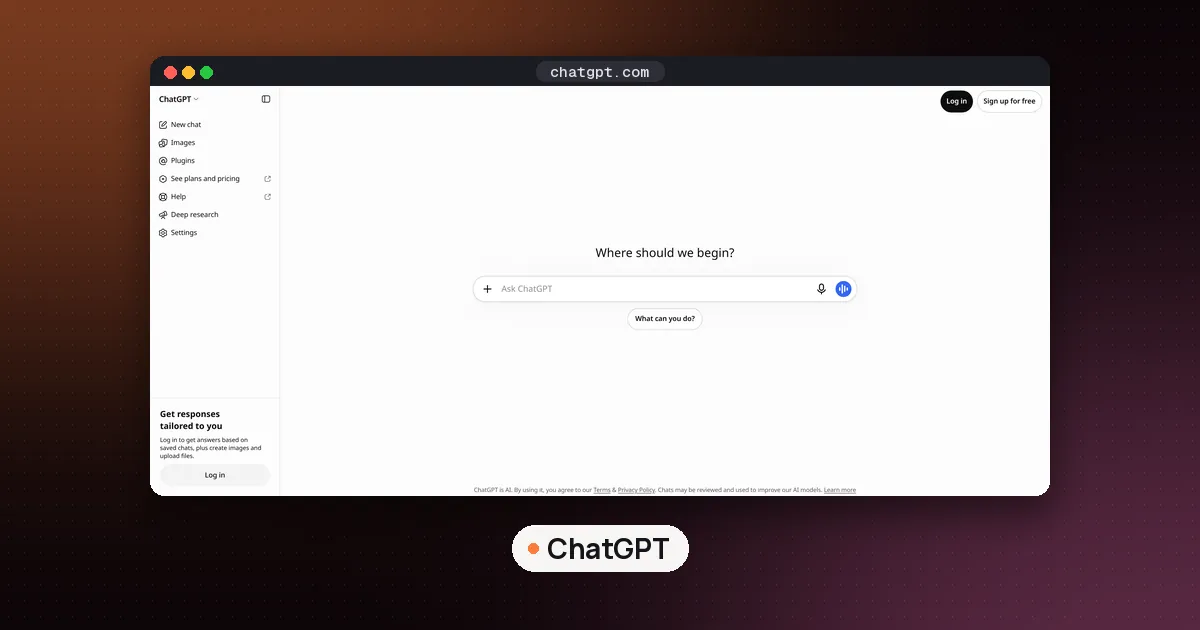
To connect iCloud to ChatGPT, open Settings > Plugins in ChatGPT, install the iCloud Mail plugin, the iCloud Calendar plugin or both, and sign in to each one with an Apple app specific password that you create at account.apple.com. Mail wants your iCloud Mail address (ending in @icloud.com, @me.com or @mac.com), while Calendar wants your primary Apple Account email, which can be a different address. Never type your normal Apple password into the form or paste any password into a chat.
OpenAI announced the two plugins on October 27, 2026, and its help center says they are rolling out to every ChatGPT plan, free included, on the web, the desktop app and iOS. Every step below was checked on October 29, 2026 against OpenAI's guide to connecting app accounts, OpenAI's connected apps overview and Apple's support page on app specific passwords. We have not run the connection ourselves, so if a label on your screen differs, search the OpenAI help center for "iCloud".
What the iCloud plugins can do in ChatGPT
There are two separate plugins, and installing one does not authorize the other.
- iCloud Mail lets ChatGPT search and read your iCloud inbox, manage messages and drafts, and send email, according to MacRumors' launch report.
- iCloud Calendar lets ChatGPT read events and create or update them on the calendars that show up in the iPhone Calendar app or any other app that uses iCloud Calendar.
- Contacts: both plugins include read only contact lookup, so ChatGPT can find an address when you say "email Sam." OpenAI says standalone Contacts and Reminders plugins are not part of this launch, so ChatGPT cannot edit your contacts or touch your Reminders lists through them.
The big limit is scope. The plugins only see mail and events stored in iCloud. If your iPhone Mail app also shows a Gmail or Outlook account, ChatGPT will not see those messages through the iCloud plugin. Engadget's coverage makes the same point: the plugins connect to Apple's services, not to the Mail and Calendar apps on your Mac. For Gmail, Google Calendar or Outlook, use ChatGPT's separate apps for those services.
Before you start: what you need
- A ChatGPT account on any plan. OpenAI lists the plugins for all plans on web, desktop and iOS. If you use a work or school ChatGPT workspace, an administrator can block or limit apps, and you may see "Disabled by admin."
- Two factor authentication on your Apple Account. Apple says you can only create app specific passwords when two factor authentication is turned on.
- The right email addresses. Write down your iCloud Mail address and your primary Apple Account email. Many people signed up for their Apple Account with a Gmail or Outlook address years ago, and in that case the Calendar plugin wants that address, not the @icloud.com one.
How to connect iCloud to ChatGPT, step by step
Step 1: Create an app specific password at Apple
- Go to account.apple.com and sign in.
- In the Sign In and Security section, choose App-Specific Passwords.
- Choose Generate an app specific password and follow the prompts. Give it a label you will recognize later, such as "ChatGPT Mail."
Apple lets you keep up to 25 active app specific passwords. Making one per service ("ChatGPT Mail" and "ChatGPT Calendar") costs nothing and means you can cut off one without breaking the other.
Step 2: Install the plugin in ChatGPT
- In ChatGPT, open your profile menu, then Settings > Plugins. Very old versions of the iOS or Android app may say Apps instead of Plugins.
- Select iCloud Mail (or iCloud Calendar).
- Select Install plugin. This may start the connection flow right away. If not, select Connect.
Step 3: Fill in the connection form
- For iCloud Mail, enter the address ending in @icloud.com, @me.com or @mac.com, then paste the app specific password.
- For iCloud Calendar, enter your primary Apple Account email, then paste an app specific password.
OpenAI's troubleshooting page says that if Mail rejects your address, the usual cause is entering something other than your iCloud Mail address.
Step 4: Repeat for the other service
If you want both mail and calendar, go back to Settings > Plugins and connect the second plugin on its own. Each connection is separate for setup, reconnection and disconnection.
How to use iCloud Mail and Calendar in a chat
After you connect, start a new chat and either type @ and pick the iCloud plugin, or open the + menu and select it. Then ask for something specific. A few requests that match what the plugins support:
- "Find the email from my landlord about the lease renewal and summarize what she is asking for."
- "What is on my calendar Thursday afternoon?"
- "Move my dentist appointment on Friday to 4 PM and keep the same reminder."
- "Draft a reply to the last email from Jordan saying I can meet next week, but don't send it."
Narrow requests work better. OpenAI's troubleshooting guide suggests a tighter calendar date range or a more exact contact name or email address when a search comes back incomplete. If you schedule meetings with other people often, our guide on how to use AI to schedule meetings covers tools built for the back and forth with guests.
Set permissions so nothing sends without you
Sending an email or changing an event affects other people, so check the approval setting before you rely on the plugins. OpenAI's page on managing app permissions lists these options, depending on your account and the app:
| Setting | What ChatGPT does |
|---|---|
| Always ask | Asks before reading app information or making changes |
| Allow read actions | Reads without asking, asks before making changes |
| Allow low risk actions | Approves low risk actions on its own; higher risk actions may need confirmation or be denied |
| Allow all actions | Performs supported actions without more prompts; OpenAI labels this elevated risk |
To change it, open Settings > Plugins, open Permissions, and pick a default. You can also set a different permission for one connected account from its more options menu (the three dots) under Connected accounts. OpenAI lists sending an email, message or invitation as an example of an action that can need extra review.
Our advice: start with Allow read actions. Searching and summarizing your inbox then happens without a prompt each time, while every send, draft change and calendar edit still waits for your tap. Move up only after you have seen how the plugin handles a few real requests.
If a send or edit stops partway and the result is unclear, OpenAI says to check the destination first. Look in your Sent folder or open the event in the Calendar app before asking ChatGPT to try again, or you may end up with two emails or two events.
Privacy: what OpenAI can see and keep
Connecting iCloud gives ChatGPT access to what is in that mailbox and calendar, so read these points from OpenAI's connected apps page before you start:
- Model training. On Free, Go, Plus and Pro accounts, OpenAI may use information accessed from apps to train its models if the "Improve the model for everyone" setting is on. On Business, Enterprise and Edu, OpenAI says it does not use app information for training by default. Check that setting under Data Controls if this matters to you.
- Memory. With Memory turned on, ChatGPT may remember relevant details it read through an app, unless the app restricts that.
- Disconnecting is not deleting. Disconnecting a plugin stops future access, but it does not delete existing chats, saved files or memories. Review those separately.
If you want an assistant that handles your inbox for you rather than one you chat with, our roundup of the best AI email assistant picks compares tools built for that.
How to disconnect iCloud from ChatGPT
- Open Settings > Plugins and select iCloud Mail or iCloud Calendar.
- Open the more options menu (the three dots) next to the connected account, or use the Connection section.
- Select Disconnect.
That only closes the door on the ChatGPT side. OpenAI says disconnecting does not revoke the app specific password at Apple. To finish the job, sign in at account.apple.com, open App-Specific Passwords in Sign In and Security, and select Remove next to the password (or Revoke All). Apple notes that any other app using the same password is signed out too, which is one more reason to use a separate password for each service.
Fix common iCloud connection errors
"Password rejected." Check that you are signing in to the right Apple Account and that the app specific password still exists. Apple revokes every app specific password automatically when you change or reset your main Apple Account password. Make a new one and reconnect the affected plugin. Reconnecting Mail does not fix Calendar, or the other way around.
Mail will not accept your email address. Use the iCloud Mail address (@icloud.com, @me.com or @mac.com), not a Gmail or work address.
Calendar will not connect with your @icloud.com address. Try your primary Apple Account email instead. OpenAI notes the two can differ.
"Temporarily unavailable." OpenAI says a service error does not by itself mean your password is wrong. Wait and try later before you create new passwords.
"Disabled by admin." In a work or school ChatGPT workspace, ask the administrator to review the plugin. On a personal account, OpenAI suggests checking your plan, region, app version and device, then contacting support if it continues.
The plugin is not listed yet. OpenAI describes the launch as rolling out, so it may reach some accounts later. Update the ChatGPT app and check Settings > Plugins again.
Is it worth connecting?
For most iPhone users who keep mail and calendar in iCloud, yes, with Allow read actions as the setting. The most useful jobs are the boring ones: finding an old email by describing it, checking a busy week in one sentence, and drafting replies you still send yourself. If you mainly live in Gmail or Outlook, the iCloud plugins add nothing, and an assistant built into those apps may suit you better. For a wider look at assistants on the phone, see our best AI personal assistant for iPhone guide, and if you want an app that plans your day across several calendars, compare the picks in our best AI calendar planner roundup.
FAQ
Is the ChatGPT iCloud plugin free?
Yes. OpenAI says the iCloud Mail and iCloud Calendar plugins are rolling out to all ChatGPT plans, including Free, on the web, the desktop app and iOS. Your plan's normal usage limits still apply, since OpenAI notes that app use can count toward them.
Why does ChatGPT need an app specific password for iCloud?
Apple uses app specific passwords so apps made by other companies can reach your iCloud mail and calendar without ever storing your main Apple Account password. OpenAI's form asks for one, and both companies say not to use your regular password.
Can ChatGPT read my Gmail through the iCloud plugin?
No. The iCloud plugins only see iCloud Mail and iCloud Calendar. Other accounts shown in the iPhone Mail app, such as Gmail or Outlook, need ChatGPT's own Gmail, Google Calendar or Outlook apps.
Can ChatGPT send emails from my iCloud account?
Yes. The Mail plugin can send email and manage drafts. How often ChatGPT asks first depends on your permission setting, and OpenAI lists sending an email as an action that can need review. Allow read actions keeps every send behind a confirmation.
Can ChatGPT access my iCloud Reminders or Contacts?
Only partly. Both plugins include read only contact lookup. OpenAI says standalone Contacts and Reminders plugins are not part of this launch, so ChatGPT cannot add contacts or manage Reminders lists through iCloud.
How do I fully remove ChatGPT's access to iCloud?
Disconnect the plugin under Settings > Plugins in ChatGPT, then remove the app specific password at account.apple.com under Sign In and Security. Disconnecting in ChatGPT alone does not revoke the password at Apple.