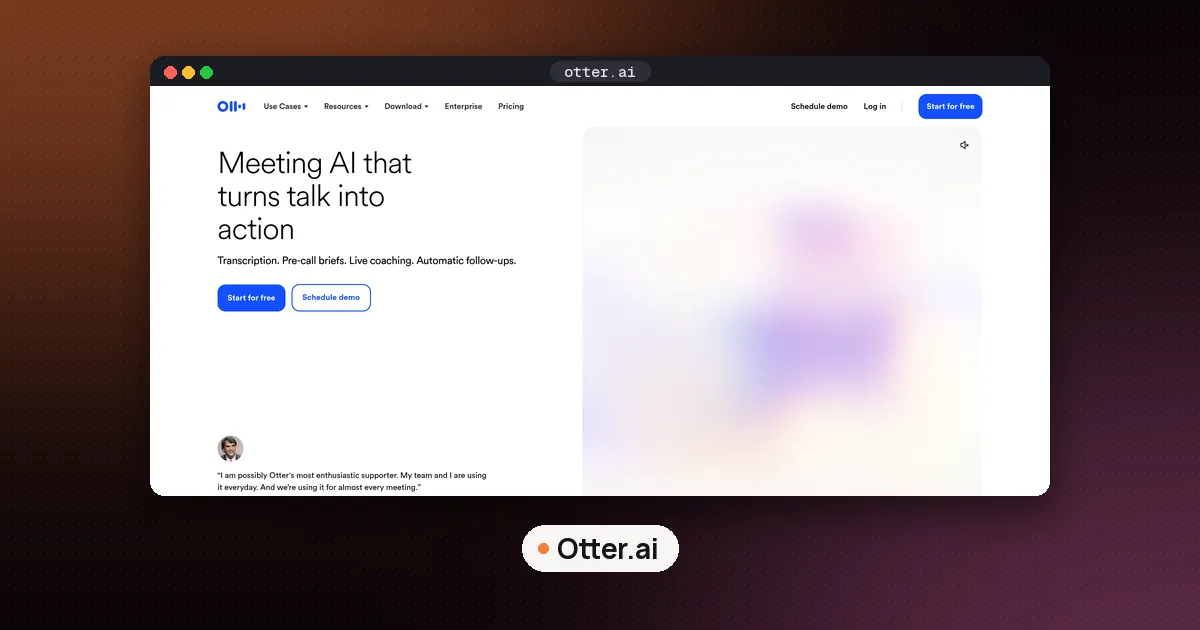
How to use Otter.ai with Teams: create a free Otter account, connect your Microsoft Outlook calendar, set Notetaker to join events that include a Teams link, then admit Otter from the lobby if your org requires it. For ad hoc calls, paste the Teams meeting URL into Otter. If your company blocks guest bots, record the same call with the Otter desktop app instead so nothing joins as a participant.
That is the short path. The rest of this guide walks through calendar auto join, manual URL joins, the Teams admin settings Otter needs, bot free desktop capture, what you get after the call, and when Copilot or another note taker is a better fit. Steps and limits were checked on November 5, 2026 against Otter's Notetaker overview, the Teams setup article, the desktop app guide, Otter's pricing page and Microsoft Learn on anonymous participants. We did not run Otter in a live Teams meeting for this guide.
How does Otter.ai work with Microsoft Teams?
Otter is an AI meeting note taker. Its Notetaker joins Zoom, Google Meet and Microsoft Teams as a visible guest participant, records the conversation, builds a transcript with speaker labels, and produces a summary with action items. After you connect a calendar, Otter syncs events that contain a meeting URL and can join those automatically. You can also paste a live Teams link when the event is not on your calendar.
Two details matter specifically for Teams:
- Notetaker joins as an anonymous guest. It cannot sign in with a Microsoft account. Your org's meeting settings must allow anonymous users, or Notetaker fails to join.
- Everyone can see it. The display name looks like
[Your Name]'s Notetaker (Otter.ai). Otter's help docs say it cannot hide. Tell people you are recording, and follow your company's policy plus local consent rules.
If a bot in the participant list is a non starter, use Otter's desktop app for Mac or Windows. It captures system audio without adding a Notetaker to the call. That option is covered later in this guide.
What you need before Otter joins Teams
Check these before you blame Otter for a missed meeting.
- An Otter account. Basic is free. Sign up at otter.ai.
- A Microsoft 365 Outlook calendar online. Otter syncs the primary calendar only. Secondary and subscribed calendars do not sync. On premises Exchange calendars are not supported.
- A Teams meeting URL on the calendar event for auto join, or a full meeting URL (with any password embedded) for a manual join.
- Org settings that allow anonymous guests. Someone with Teams admin rights usually has to turn those on. Individual users cannot change org wide meeting settings.
- Someone who can admit guests from the lobby, unless your policy lets guests bypass it.
You do not need a Microsoft Copilot license for Otter. Copilot is a separate Microsoft path; our guide on how to transcribe a meeting with Copilot covers that option when your company already pays for it.
How to use Otter.ai with Teams: connect Outlook and auto join
This is the setup most people should use for recurring Teams work.
Connect Microsoft Outlook
- In Otter on the web, open Apps (or Account Settings → Apps) and find Connect calendars & contacts.
- Click Add next to Microsoft.
- Sign in with your work or school Microsoft account and accept the calendar and contacts permissions Otter requests.
- Wait for events to sync to your Otter homepage calendar.
Otter's calendar help notes that the Microsoft email does not have to match your Otter login email. If sign in asks for admin approval, send your Microsoft admin Otter's IT administrator setup article so they can grant the Graph permissions (Calendars.Read, Contacts.Read, and the sign in scopes Otter lists).
Choose which meetings Notetaker joins
Open Account Settings → Meetings (or the gear on the homepage calendar) and set the default join rule. Otter's auto join help lists these options:
- Meetings with a video link
- Meetings where I am the host
- External meetings outside your domain (Workspace with a business domain)
- Internal meetings within your domain (same)
- Meetings I manually select
Start with Meetings I manually select or Meetings where I am the host until you are comfortable. Then toggle Notetaker on for the Teams events you want on the Otter homepage calendar.
During the Teams meeting
When Notetaker arrives, admit it from the lobby if your org requires it. You may see Otter labeled Unverified. Otter's Teams setup article says that is normal for anonymous guests and is not by itself a failure. You may also see a Limited call features banner in Teams. Otter and Microsoft treat that as a display issue; meeting features keep working and Notetaker continues.
After the call, open the conversation in Otter for the transcript, summary, action items and Otter AI Chat questions about what was said.
Manually add Otter to a live Teams meeting
Use this when the meeting is not on your synced calendar, auto join was off, or Notetaker failed the first attempt.
- In Teams, copy the meeting link from Meeting info (or the invite). Include the password in the URL if one is present. Otter will not join without an embedded password when the meeting requires one.
- On the Otter homepage, click into Paste meeting URL to add Otter.
- Paste the Teams URL and press Enter, or click Record.
- Wait up to a few minutes. Admit Notetaker from the lobby when it appears.
If the event is already on your Otter calendar but auto join was off, Otter's manual add article says a Notetaker button appears on that event once the meeting has started. Click it to send Notetaker in. Refresh the page if you do not see the button after the start time.
Teams admin settings Otter needs
If Notetaker never appears, or Otter shows "Notetaker failed to join," the blocker is almost always an org policy, not your Otter plan. Otter's Teams setup guide (updated September 30, 2026) asks admins to do the following in the Teams admin center.
Required
- Meetings → Meeting settings → Participants: turn on Anonymous users can join a meeting, then Save.
- Meetings → Meeting policies → Meeting join & lobby: turn on Anonymous users can join a meeting unverified.
Microsoft's anonymous participants documentation explains why: anonymous join is controlled at the org and policy level. Otter cannot bypass those switches with a Microsoft login.
Optional (smoother joins)
- Set Who can bypass the lobby to People in my org and guests so someone does not have to admit Notetaker every time.
- Under Manage external bots and their access to meetings, Otter suggests Do not detect bots. Microsoft's default is stricter. That choice belongs to IT. See Microsoft Learn on managing external bots.
Only a Teams admin can change those org settings. Meetings hosted by another company use that company's policies, which is why Notetaker can join some Teams calls and not others.
Record Teams without a bot: Otter desktop app
When clients or security teams dislike guest bots, skip Notetaker and use botless recording.
- Install the Otter desktop app for macOS 12.3 or later, or Windows 10 or later.
- Sign in and grant Microphone plus Screen & system audio (or the Windows equivalents) so Otter can hear the meeting while you wear headphones.
- Join the Teams meeting as usual.
- Click Record in the Otter desktop app. Use the floating controls to pause, resume or finish.
Otter's desktop help (updated October 28, 2026) also covers:
- Meeting detection for Microsoft Teams: remind you to record, or start automatically.
- A Teams chat notice when recording starts. The default text is "I am using Otter to record this meeting." You can customize it up to 128 characters.
- Automatic screenshots of shared content during Zoom and Teams recordings, if you enable that setting.
You must be on the call for desktop capture. Notetaker is still the option when you want notes from a meeting you cannot attend, subject to plan limits on concurrent meetings.
What Otter.ai does after a Teams meeting
After a successful capture, Otter stores a conversation on web, desktop or mobile with a searchable transcript, speaker labels, playback, an automated summary and action items. Otter AI Chat lets you ask questions about that meeting or across meetings. You can share via private channels or public links depending on your plan, and optional meeting summary emails go out when calendar contacts are connected.
That is what Otter.ai does in practice: turn spoken Teams time into text you can search, share and query. How Otter.ai works under the hood is a mix of speech recognition and generative AI for summaries and chat. Otter markets those features as its own stack and does not publish a single consumer facing model name on the pricing or Notetaker overview pages we checked, so judge the product by transcript quality on your own calls.
Free plan limits for Teams use (and when to upgrade)
Teams support is included on Basic. The free plan still has hard caps that matter if you live in meetings. Per Otter's Basic plan limits article and pricing page (checked November 5, 2026):
- 300 transcription minutes per month
- Up to 30 minutes of accessible transcript per conversation on Basic (recording may continue, but you only see the first 30 minutes until you upgrade)
- 3 lifetime audio or video file imports
- 25 most recent conversations visible (older ones are archived, not deleted)
- Live transcription, speaker identification, Zoom / Teams / Google Meet Notetaker, and mobile apps
Deleted conversations still count toward the monthly minute cap. Unused minutes do not roll over.
Paid plans raise those caps. On the pricing page we checked, Pro lists $16.99 per user per month on monthly billing (about $8.33 per month when billed annually) with higher recording minutes and meetings up to 90 minutes. Business adds longer meetings and concurrent Notetaker joins. Student and teacher .edu addresses get 20% off Pro. For the free plan walkthrough and Granola comparison, see Granola vs Otter. Recheck otter.ai/pricing before you buy.
When Copilot, Read AI or Granola fit better
Stay with Otter when you want one transcript tool across Teams, Zoom and Meet, or when you need Notetaker to attend a call you skip.
Look elsewhere in these cases:
- Your company already pays for Microsoft 365 Copilot. Native Teams transcription and Recap avoid a third party guest. Start with how to transcribe a meeting with Copilot.
- You want meeting metrics and coaching inside Teams. Compare limits in Is Read AI free with Teams?.
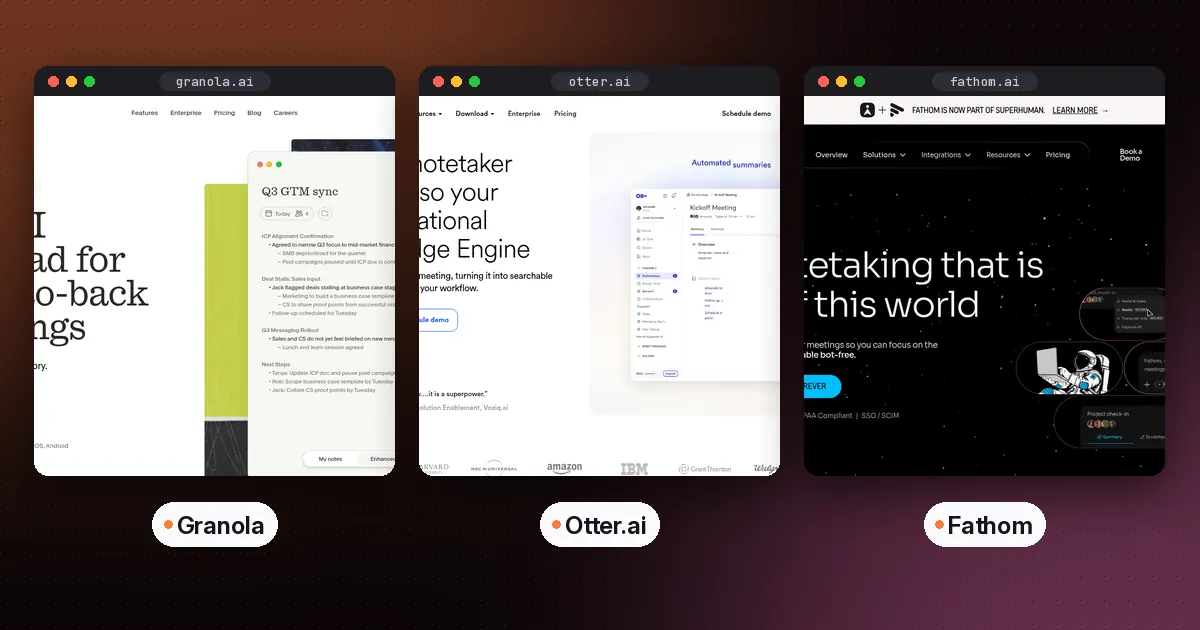
- You never want a bot and prefer notes in your own words. Granola records device audio only. Our best AI meeting note taker roundup puts Granola, Otter, Fathom and others side by side.
- Your calls are mostly on Google Meet. See AI note taker for Google Meet.
Whatever you pick, put a one line recording notice in the invite. Teams flags many bots now, and a surprise Notetaker in the lobby is the fastest way to get denied.
FAQ
Is Otter.ai free to use with Teams?
Yes. Basic includes Zoom, Microsoft Teams and Google Meet Notetaker at no charge. You still hit the free plan's 300 monthly minutes and 30 minute per conversation access limit. For plan by plan free details, read the Otter free plan section in Granola vs Otter.
How do I use Otter.ai if auto join fails?
Paste the full Teams meeting URL into Paste meeting URL to add Otter on the homepage, or click the Notetaker button on a started calendar event. Then admit Otter from the lobby. If it still fails, ask IT to allow anonymous and unverified guests per Otter's Teams setup article.
Can Otter join a Teams meeting without me?
Yes, when Notetaker auto joins from your calendar (or you paste the URL) and the host admits it. You do not have to stay in the call. Desktop botless recording is different: you need to be on the meeting for Otter to hear system audio.
Will other people see Otter in the participant list?
Yes, when you use Notetaker. Otter's overview says the bot cannot join anonymously or invisibly. Use the desktop app if you need capture without a second participant.
What if my company blocks anonymous guests?
Notetaker cannot join those meetings. Options: ask IT to allow anonymous join for your policy, switch to Otter's desktop app while you attend, or use a native option such as Teams transcription with Copilot if licensed.
Does Otter work for Teams calls that are not calendar meetings?
Direct Teams calls without a meeting link are a poor fit for URL based Notetaker joins. Schedule a Teams meeting, or use desktop recording while you are on the call.