How to use Superhuman Email Assistant: connect your Gmail or Outlook account, finish onboarding for Auto Labels, Auto Archive, Auto Drafts and Auto Reminders, then review Personalization and feature settings on the Dashboard. The agent works inside the inbox you already use. It never sends mail without you. Pricing starts at $12 a month billed yearly, or $15 billed monthly, per Superhuman's Email Assistant page.
Superhuman announced Email Assistant by Superhuman Mail on November 3, 2026. The pitch is simple: keep Gmail or Outlook, and let a background agent label mail, draft replies in your voice, archive noise and resurface follow ups. This guide walks through setup, each feature, pricing, privacy claims and when a free built in tool or another assistant is enough. Facts were checked on November 5, 2026 against the product page, the announcement post and Superhuman's Gmail and Outlook help articles. We did not connect a live inbox for this guide.
Email Assistant vs Superhuman Mail vs Superhuman Go
The Superhuman name covers more than one product, so start by picking the right one.
| Product | What it is | Do you leave Gmail or Outlook? |
|---|---|---|
| Email Assistant by Superhuman Mail | Background agent inside Gmail or Outlook | No |
| Superhuman Mail | Separate email client with keyboard shortcuts and AI | Yes, you switch apps |
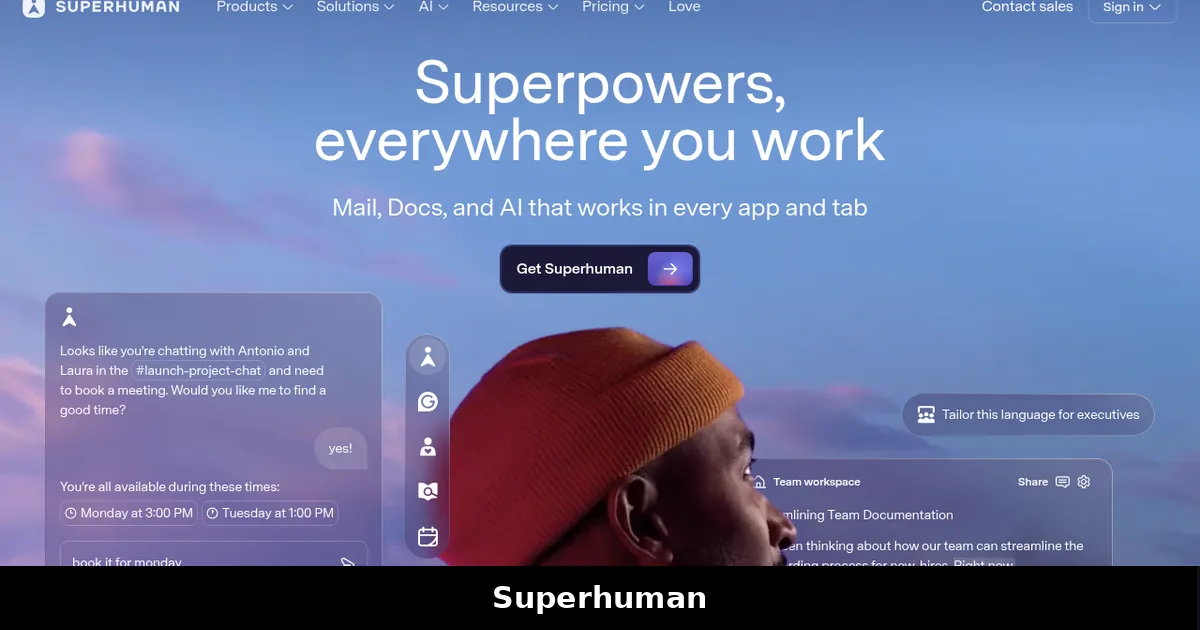
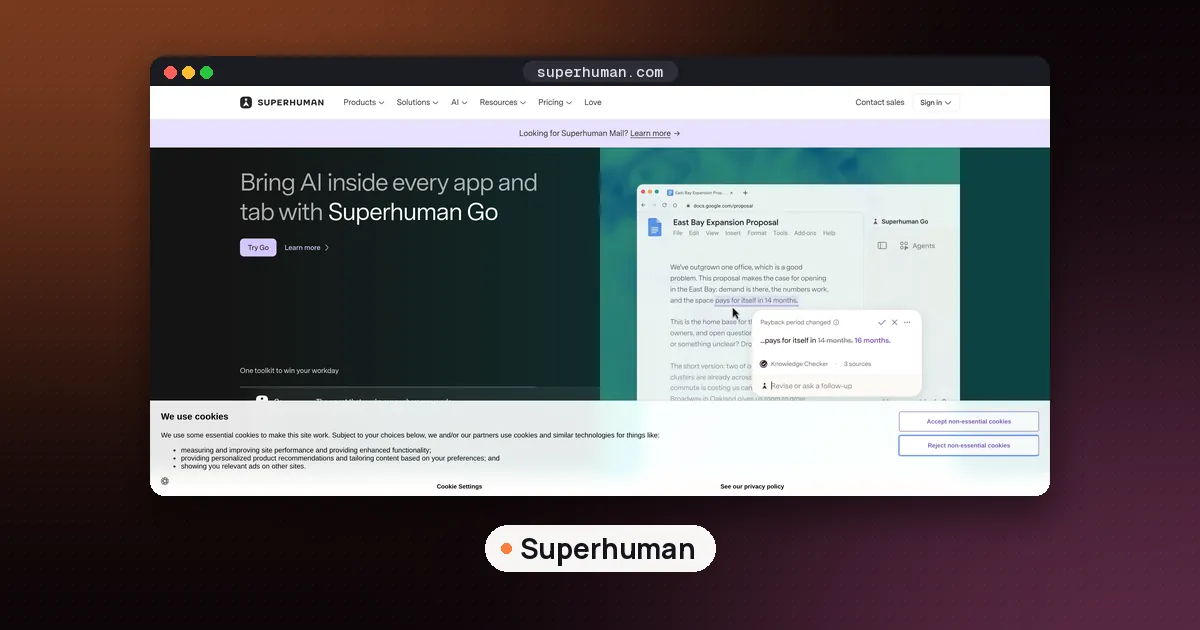
| Superhuman Go | Writing and agent layer across docs, browsers and apps | No for writing; email features need a paid Go plan |
Email Assistant is for people who want Superhuman style triage without learning a new client. Superhuman Mail is the dedicated app. Superhuman Go is the cross app writing assistant that can include its own Email Assistant on Pro. For suite setup and Go pricing, see how to use Superhuman Go. For a wider shortlist across vendors, see our best AI email assistant guide.
What Email Assistant does in Gmail and Outlook
After you connect an account, Email Assistant runs four features described in Superhuman's help center:
- Auto Labels. Every incoming message gets one of six labels: Respond, Waiting, FYI, Notifications, Promotions or News.
- Auto Archive. Lower priority Notifications, News and Promotions can leave your main inbox without being deleted.
- Auto Drafts. Replies and follow ups appear as normal drafts in your voice. Nothing sends itself.
- Auto Reminders. Sent threads come back when no reply arrives, on a wait time you choose.
You do not need a browser extension or a separate mobile app. Labels, drafts and archives show up in the Gmail or Outlook apps you already open on a phone. If you also use the Superhuman Mail app, Superhuman says Email Assistant still works, but some granular Auto Archive controls live only in Email Assistant settings.
How to set up Superhuman Email Assistant
1. Buy and connect an account
Open the Email Assistant product page, start a subscription, then connect one or more Gmail or Outlook accounts with the email login Superhuman asks for. Superhuman says you can add multiple Gmail and Outlook accounts so work and personal inboxes can each get their own settings.
2. Finish onboarding
Onboarding walks you through Auto Labels, Auto Archive, Auto Drafts and Auto Reminders. When it ends you land on the Dashboard. Spend a few minutes on Personalization: writing style, greeting, signoff, company context and scheduling preferences. Superhuman's Gmail guide says fuller Personalization gives Auto Drafts better context.
3. Outlook tip: turn on conversation view
For Outlook, Superhuman recommends conversation view so drafts, categories and reminders sit with the right thread. Steps from the Outlook help article:
- New Outlook or Outlook on the web: Settings, Mail, Layout, then show email grouped by conversation.
- Classic Outlook: View, Show as Conversations, then This folder or All mailboxes.
4. Wait for the first pass
Labels and drafts can appear in about 15 minutes. Larger inboxes can take two hours or longer. You do not need to keep the Dashboard open. Settings changes for Auto Archive apply to new mail only, not to messages already in the inbox.
5. Add or remove accounts later
In Email Assistant settings, use Accounts or Add accounts to connect another Gmail or Outlook login. Use the account selector in the upper right when you change Auto Archive, drafts, reminders, calendars or Personalization. Each account has its own settings. Signing out of an account does not cancel the paid subscription. Cancel from Billing with the account you used to subscribe, or ask your admin if the org pays.
Auto Labels in practice
Auto Labels are a fixed set of six. You cannot rename, disable or replace individual labels. Email Assistant will not remove labels you already created in Gmail, and in Outlook it will not remove categories you created yourself.
| Label | Meaning |
|---|---|
| Respond | Needs your reply |
| Waiting | You are waiting to hear back |
| FYI | Useful, no action needed |
| Notifications | Automated updates and alerts |
| Promotions | Marketing and offers |
| News | Newsletters and digests |
If a label is wrong, remove it from that thread with the X next to the label. That change applies only to that thread. It does not teach Email Assistant a new rule for similar mail later.
Auto Archive: defaults, Daily Digest and Never archive
Auto Archive targets Notifications, News and Promotions. Respond, Waiting and FYI cannot be auto archived. On first setup, Notifications, News and Promotions are on for Auto Archive by default, with exceptions meant to keep important types in the inbox. Inside each category you set each subtype to Inbox or Archive. Examples from the Gmail help article include security and sign in alerts, payments and bills, deliveries, newsletters you regularly open, recruiter outreach and cold sales mail.
Use sender overrides when category rules are too blunt:
- Always archive: new conversations from that person or domain skip the inbox.
- Never archive: new conversations stay in the inbox even if the type would normally archive.
Sender overrides win over category settings. People and domains you have emailed before are automatically excluded from label based Auto Archive unless you override them. Gmail spam filtering can still beat Never archive: if Gmail marks mail as spam, Email Assistant cannot put it in the inbox.
Archived mail is not deleted. Find it with the Auto Label, search, All Mail or the Auto Archived folder. The Daily Digest is on by default and arrives at 5pm local time (or 5pm Pacific if your time zone is missing). You cannot change the delivery time. You need Auto Archive on for at least one category to get a digest, and you can turn the digest off while keeping Auto Archive on.
Auto Drafts and Auto Reminders
Auto Drafts come in two flavors: response drafts for incoming mail that needs a reply, and follow up drafts for sent mail with no reply. Drafts appear as normal Gmail or Outlook drafts. Review, edit, send or delete them yourself. Superhuman's product FAQ states clearly that Email Assistant does not send mail without approval.
Drafts can pull availability from connected calendars when someone asks to meet, and they can follow your scheduling preferences. You can Cc a teammate on scheduling drafts if you want help coordinating. In settings you can turn Responses and Follow ups on or off separately, and you can limit Response drafts to people you have emailed before.
Auto Reminders resurface a sent thread after a wait you choose (including weekday only options). A reminder brings the conversation back. A follow up draft is the prepared message. They work together but are controlled separately.
Pricing and what you get
As of November 5, 2026, the Email Assistant page lists:
| Plan | Price |
|---|---|
| Billed yearly | $12 per month |
| Billed monthly | $15 per month |
That price covers labeling, drafting, follow ups and archiving inside connected Gmail or Outlook accounts. Superhuman says you can add the assistant to multiple accounts. Cancel anytime from Billing. For team wide rollout, the November 3 announcement points people to contact sales.
Compare that with nearby options before you subscribe:
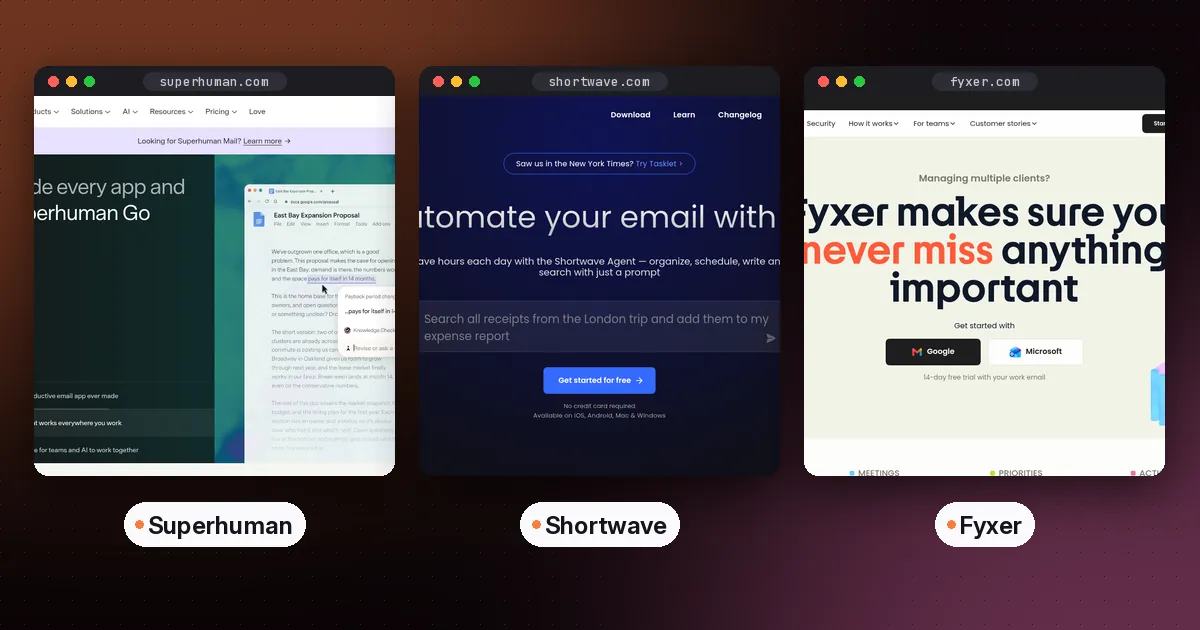
- Fyxer also drafts inside Gmail and Outlook; see SaneBox vs Fyxer if you mainly want filtering vs drafting.
- SaneBox filters many providers with a header first approach and no drafted replies.
- Shortwave is a Gmail only client with strong AI search.
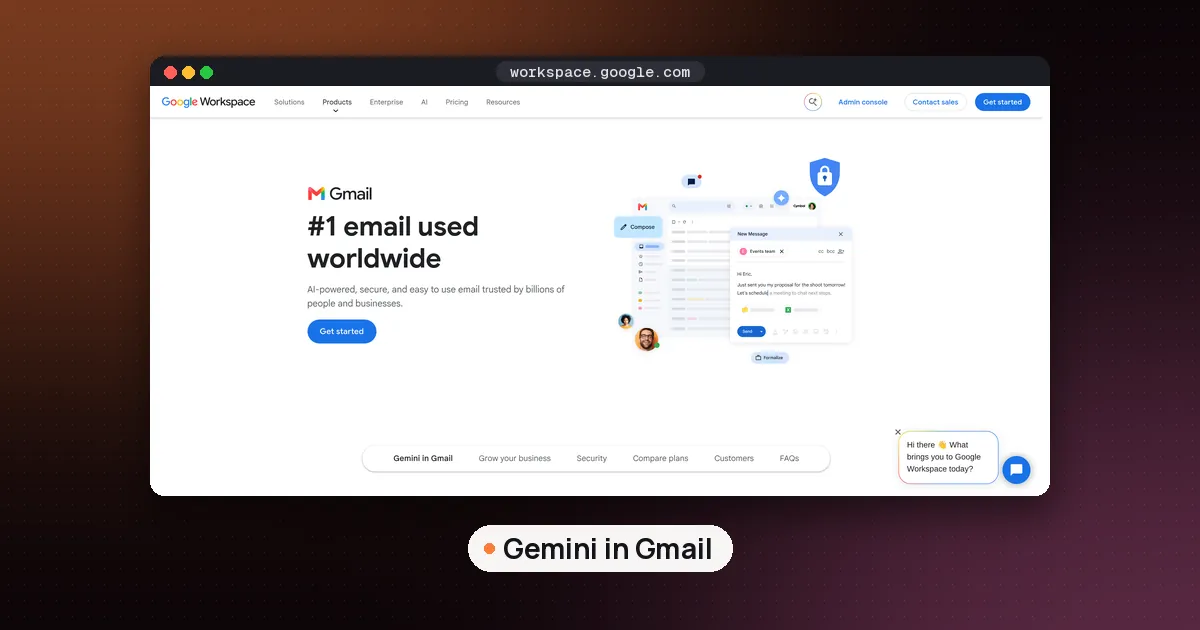
- Free Gemini features in Gmail, including Help Me Write and Gmail AI Inbox on paid Google AI or eligible Workspace plans, cover a lot of triage without a third party agent.
Prices move. Confirm on Superhuman's page before you pay.
Privacy and trust claims
Superhuman's Email Assistant FAQ says the product is SOC 2 Type 2 certified and GDPR compliant, with Google Advanced Protection built in, and that your email is never used to train external AI models. It points readers to Superhuman's Trust Center for detail. Treat that as the vendor's claim and read the Trust Center yourself if your employer has a strict AI policy for mail. Never put legal, medical or HR threads into a third party AI tool if company policy forbids it.
Who should use it, and who should skip it
Good fit
- You live in Gmail or Outlook and refuse to switch clients.
- You answer a high volume of mail and want drafts waiting when you open the thread.
- You manage more than one inbox and want the same triage pattern on each.
- You want follow ups resurfaced without a separate reminder app.
Skip or wait
- A free built in draft and summary tool already covers your load.
- Your mail is on iCloud, Yahoo, Fastmail or IMAP only. Email Assistant is for Gmail and Outlook.
- You only want noise filtered and do not want an AI reading message bodies. SaneBox is closer to that job.
- You want the full Superhuman Mail keyboard client and are ready to switch apps.
FAQ
Does Superhuman Email Assistant work in Gmail and Outlook?
Yes. Superhuman's product page and help articles say it connects to Gmail and Outlook accounts and works inside those inboxes. You do not need to install a browser extension or switch to the Superhuman Mail app.
Does Email Assistant send email without me?
No. Auto Drafts sit as normal drafts. You review, edit and send. Superhuman states that nothing goes out without your approval.
How much does Superhuman Email Assistant cost?
As listed on November 5, 2026: $12 a month when billed yearly, or $15 a month when billed monthly. Confirm on the Email Assistant pricing section before you buy.
How is Email Assistant different from Superhuman Mail?
Email Assistant keeps you in Gmail or Outlook and adds labeling, drafting, reminders and archiving in the background. Superhuman Mail is a separate email client for people who want to leave their old inbox for Superhuman's app.
How long until labels and drafts show up?
Superhuman says you may see results in about 15 minutes, while larger inboxes can take two hours or longer. Processing continues in the background after onboarding.
Can I use Email Assistant on my phone?
Yes, without a separate Email Assistant app. Because it connects to your Gmail or Outlook account, labels, drafts and archives appear in the mobile Gmail or Outlook apps you already use.