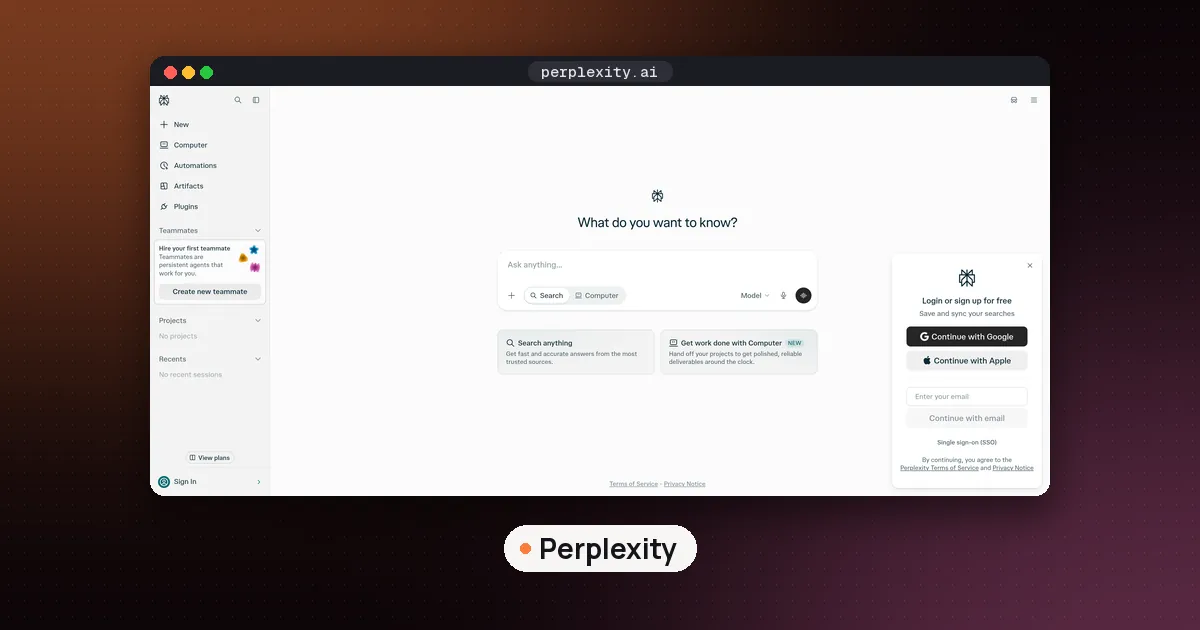
To use Perplexity Computer, open Perplexity on the web or in the iOS or Android app, select the Computer icon on the Home page, and type one clearly scoped job into the Start a task field. Computer then plans the work, splits it among helper agents and returns finished files, such as a report, a spreadsheet or a slide deck. It runs on paid Perplexity plans and is metered in credits, so the real skill is writing a tight brief and picking the right effort level before you press send.
This guide walks through the whole routine: getting access, writing your first task, choosing Light, Standard, High or Ultra effort, connecting apps, setting up recurring Automations, sending tasks by email and keeping your credit spend under control. Everything here comes from Perplexity's help center, pricing pages and launch coverage, checked on November 11, 2026. We have not run Computer tasks ourselves for this guide, so treat it as a map of the documented features rather than a hands on review.
What Perplexity Computer actually is
Perplexity's help article What is Computer? calls it an independent digital worker. Instead of answering one question, it takes an outcome you describe, works through the steps and acts: it researches across the web and your connected apps, writes documents, builds simple apps, handles email and can keep running on a schedule.
Perplexity launched Computer in late February 2026. Ars Technica's launch report explains the core idea: a lead agent breaks your goal into subtasks and assigns them to other agents running whichever models Perplexity picks for each job. Ars quotes Perplexity saying every task runs in an isolated cloud environment with a real filesystem, a real browser and real tool integrations. TechCrunch reported at launch that it was limited to the top Max tier. Access has widened since, as the next section explains.
The practical difference from a normal Perplexity search: a search gives you an answer with citations, while Computer works in the background and hands you a deliverable, such as a cited report, a spreadsheet built from your Gmail or a slide deck.
Who can use it and what it costs
Computer is available on paid Perplexity plans with nothing to install. The help center says some free accounts also get a small, one time allowance of free Computer turns to try it. A turn is one message you send plus Computer's reply, follow ups included, and free turns don't reset. On free turns Computer can't run several agents in parallel, and if your turns run out partway through a task it stops, keeps what it finished and lets you resume after upgrading.
On paid plans, the meter is credits. Perplexity's credits article prices them at $1 per 100 credits and lists what each plan starts with:
| Plan | Included Computer use | One time new subscriber bonus |
|---|---|---|
| Pro | No monthly credits; paid plans get weekly included usage (rolling out gradually) | 4,000 credits, expire in about 30 days |
| Max | 10,000 credits a month | 35,000 credits, expire in about 30 days |
| Enterprise Pro | 500 credits a month | 8,000 credits |
| Enterprise Max | 15,000 credits a month | 40,000 credits |
The weekly allowance on paid Consumer Pro plans resets seven days after you first use it in a window and doesn't roll over. It doesn't apply to promotional or free Pro plans. Computer spends that weekly usage first, then bonus credits, then monthly plan credits, then any credits you bought.
Perplexity's pricing page lists Pro at $17 a month billed annually, described as expanded Computer access, and Max at $167 a month billed annually with maximum Computer usage. Verified students can get Pro for less, which our guide on whether Perplexity is free for students covers in detail.
How to use Perplexity Computer: your first task
The steps on the help center are short:
- Sign in at perplexity.ai or open the Perplexity app on iOS or Android.
- On the Home page, select the Computer icon.
- Select the Start a task field and describe the job.
- Send it, then follow the progress in the session view.
To leave Computer before sending, switch the mode toggle in the input box back to Search (the magnifying glass). Once a Computer task starts, that session can't switch back to Search, so start a fresh session from the Home page instead. On the web, the Home page remembers the mode you used last, so glance at the toggle before you type a quick question. There is no account setting to turn Computer off, though Enterprise admins can disable it for an organization.
Write a brief, not a wish
Perplexity's own guidance for Automations says a good assignment names the outcome, the tools or sources Computer should use, and where the result should go. It also says to state which actions Computer may take alone and which need your review. Those habits are just as useful for a one off task. Compare these two requests:
- Weak: "Research note taking apps."
- Better: "Compare the free plans of three AI note taking apps for college students. Use only each vendor's pricing page and help center. Put the results in a spreadsheet with one row per app, and cite the page for every number. Stop when the sheet is done."
The second version gives Computer a clear deliverable, a source rule and a stopping point. That tends to cost fewer credits and makes mistakes easier to spot.
Pick the right effort level
The effort mode article describes a slider in the input box with four levels. Each level decides which model coordinates the task and how hard it reasons:
- Light: routine work with clear instructions and a defined output, such as collecting supplier invoices from Gmail into a spreadsheet and flagging duplicate numbers.
- Standard: everyday work that pulls information into a brief or recommendation.
- High: analysis that has to explain causes or weigh competing priorities.
- Ultra: open questions where several approaches need testing and comparing.
Higher is not automatically better. Perplexity says High and Ultra take longer and use more credits, and a well described task often finishes just as well on Light or Standard. The effort level is not a spending cap either: credits follow the work actually done. A Custom option lets you choose a specific model and reasoning level instead. Effort mode is on the web and in recent mobile apps, but not in the macOS and Windows desktop apps, which still show a regular model picker.
Connect apps, skills and plugins
Computer gets more useful when it can see your own context. To connect a service, open Plugins in the sidebar (older accounts may see Customize, then Connectors), find the app on Discover or by search, open its page and select Connect. To remove one, open the three dots menu next to it and choose Disconnect.
Skills are reusable instructions for one kind of job. The help center's skills article gives the built in Slides skill and Research skill as examples, and says Computer loads a skill automatically when your task matches its description. You can create your own by selecting Add custom, then Create skill with Computer, and describing the task in a conversation. You can also upload a Markdown file or a zip with a SKILL.md file at its root. A plugin bundles connectors and skills together.
A sensible rule: connect only what the task needs. If you want a weekly inbox digest, connect your email account and leave your cloud drive and calendar off until you have a reason to add them.
Set up Automations for recurring work
Automations replaced the older Scheduled Tasks and Perplexity Tasks features. The Automations help article says they run in the cloud, so your laptop can stay closed. To create one:
- Open Automations from the left sidebar.
- Describe the recurring job and its timing in plain language, for example "Every weekday at 8am, summarize new posts from three podcasts and email me the highlights."
- Confirm the schedule and what the task will do. Computer reminds you that each run uses credits.
- Approve it, and the task appears on the Automations dashboard with its next run time.
Schedules can run as often as every 15 minutes, or hourly, daily, on weekdays, weekly, monthly or on a custom pattern, converted from your local time zone. Perplexity's Automations announcement adds event triggers, such as an email from a particular sender in Gmail or Outlook, or activity in Slack, Linear or GitHub. Notifications arrive in app, by mobile or web push, or by email, and a run that finds nothing new stays quiet. From the dashboard you can run, pause, edit, pin or delete any automation and see its run history.
Start every automation small. Run it once by hand, check the output, and only then let it repeat. A task that checks your inbox every 15 minutes uses credits on every run.
Send Computer a task by email
The Computer in Email article describes a dedicated address, computer@perplexity.com, that anyone with Computer access can use from the email address tied to their account. You can write a new email with the request, forward a thread and say what to do with it, or CC the address on an existing conversation. Computer first replies with a link to the session, then sends the result in the same thread, with files such as PDFs and spreadsheets attached. It only replies to the verified sender, and you refine the work by replying in the thread. Perplexity notes that the .ai version of the address is not supported.
It suits inbox work, like forwarding a long thread and asking for a summary plus a draft reply. Our guide to the best AI email assistant covers tools built only for the inbox if that is all you need.
Keep credits and risks under control
According to the credits article, when your credits run out, active tasks pause rather than cancel and resume once credits return, while new tasks are blocked. Auto refill is off by default; if you turn it on, set a monthly limit you are comfortable with. A few habits help:
- Use a normal search for quick questions. Save Computer for jobs with several steps and a file at the end.
- Start a new session for unrelated work instead of piling new jobs into an old one.
- Ask for a plan first on anything that changes a live system, such as a store or a shared spreadsheet. The help center gives the same advice for free turn users, and notes that Computer doesn't undo changes it already made in a connected app.
- Require review before anything leaves your hands. Tell Computer to save drafts and wait for approval before it sends, posts or deletes.
- Check the citations in research output, as you would with any Perplexity answer.
Perplexity Computer alternatives
If the credit model doesn't suit you, a few other tools handle similar delegated work. ChatGPT's Work mode is OpenAI's agent for longer multistep jobs and finished deliverables, according to its Chat and Work help page. Orkas is a free, open source desktop app where a lead agent hands tasks to specialist agents and keeps your files on your computer. Lindy focuses on email and scheduling routines. Our guide on how to use an AI virtual assistant compares these in more depth. If you mainly want help while you browse, Perplexity's free Comet browser may be enough, and our best AI browser roundup explains what it does without a subscription. For academic sources rather than web research, see the best AI tools for research paper writing.
FAQ
Is Perplexity Computer free?
Not fully. Computer is a paid plan feature, but Perplexity says some free accounts get a limited, one time allowance of free Computer turns that never reset. Paid Consumer Pro plans include weekly usage, and Max includes 10,000 credits a month.
How many credits does a Perplexity Computer task use?
It depends on the work done. Perplexity prices credits at $1 per 100 and says the effort level is not a fixed price or a cap. Lower effort levels use cheaper models, so the same task usually costs less on Light than on Ultra. You can check your balance and usage on your account's usage page.
Can I use Perplexity Computer on my phone?
Yes. The help center lists the web on desktop, iOS and Android. Effort mode needs a recent version of the mobile app, and Automations can send push notifications to the Perplexity app.
What happens if Computer runs out of credits mid task?
Active tasks pause instead of being canceled and pick up again when credits return, either from a purchase or your next monthly refresh. New tasks are blocked until then.
How do I stop Perplexity Computer from opening by default?
There is no account switch to turn it off. Before you send a request, set the mode toggle in the input box to Search. On the web the Home page remembers your last mode, so after one search it stays there. Enterprise admins can disable Computer for the whole organization.