To turn off Gemini in Gmail, open Gmail on a computer, go to Settings, then See all settings, and in the General tab click Manage Workspace smart feature settings. Switch off "Smart features in Google Workspace" and click Save. That removes Gemini's summaries, drafting and other Google Workspace with Gemini features while keeping basics like Smart Compose and inbox tabs.
There is no single "Gemini" switch. Gmail splits AI into three separate smart feature settings, and each one removes a different group of features. This guide explains what each switch does, gives the steps for desktop, iPhone and Android, and covers work and school accounts. Every step was checked against Google's official help pages on October 7, 2026.
Why so many people want to turn off Gemini in Gmail
Google has steadily moved Gemini deeper into the inbox. In its January 2026 post, Gmail is entering the Gemini era, Google announced AI Overviews that summarize long threads, rolling out to everyone at no cost, and Help Me Write and Suggested Replies for everyone too. Asking your inbox questions with AI Overviews and a new proofreading tool went to Google AI Pro and Ultra subscribers, and an AI Inbox started with trusted testers.
More is on the way. On September 30, Google said skills, reusable prompts that will replace Gems, begin rolling out in Workspace on October 5, 2026. Some people love these features. Others would rather keep their email AI-free, or simply don't want their mail used to personalize anything. Both choices are valid, and Google gives you the controls.
The three Gmail smart feature switches
Google's smart features help page describes three settings that work independently of one another.
| Setting | What it controls | What you lose when it's off |
|---|---|---|
| Smart features in Gmail, Chat, and Meet | Use of your Gmail, Chat and Meet data inside those apps | Primary/Social/Promotions tabs, Smart Compose, Smart Reply, summary cards for travel and packages |
| Smart features in Google Workspace | Use of your Workspace data across Workspace apps | Asking Gemini to summarize, draft and find information, Gmail events in Calendar, personalized search in Drive |
| Smart features in other Google products | Use of your Workspace data in other Google products | Reservations in Maps, passes in Wallet, Personal Intelligence in the Gemini app and Search (personal accounts) |
The second switch is the one that matters most for Gemini. Google's help page lists "Ask Gemini to summarize content, create drafts, and find key information, along with other Google Workspace with Gemini features" under that setting.
How to turn off Gemini in Gmail on a computer
This is the most complete method, because some settings can only be turned on from a web browser.
- Open Gmail in a browser.
- Click the Settings gear at the top right, then See all settings.
- In the General tab, scroll to Google Workspace smart features.
- Click Manage Workspace smart feature settings.
- Turn off Smart features in Google Workspace. Turn off Smart features in other Google products too if you want the fullest opt-out.
- Click Save.
If you also want to stop Gmail from personalizing your inbox at all, go back to the General tab, find Smart features, and uncheck Turn on smart features in Gmail, Chat, and Meet. Save at the bottom of the page.
Think before you uncheck that last box. It also removes the inbox tabs, Smart Compose, Smart Reply and package and travel summary cards, which many people rely on every day.
How to turn off Gemini in the Gmail app on iPhone or iPad
According to Google's iPhone and iPad instructions:
- Open the Gmail app and tap Menu at the top left, then Settings.
- Under General, tap Data privacy.
- Tap Google Workspace smart features.
- Turn off Smart features in Google Workspace, and optionally Smart features in other Google products.
- Tap Done at the top right.
To switch off the app-level features as well, go back to Data privacy and turn Smart features off.
How to turn off Gemini in the Gmail app on Android
Google's Android instructions are similar:
- Open Gmail and tap Menu at the top left, then Settings.
- Choose the account you want to change.
- Under General, tap Google Workspace smart features.
- Uncheck Smart features in Google Workspace, and optionally Smart features in other Google products.
For the app-level features, uncheck Smart features in the same General section. If you have several Google accounts in the app, repeat the steps for each one.
Google notes that changes apply across all your devices, but some changes made on a computer don't show up in the mobile app. If the app looks out of date, update it, or make the change on the web.
Which switches should you turn off?
Pick the level that matches what you actually want.
- "I just don't want Gemini drafting and summarizing." Turn off Smart features in Google Workspace only. You keep inbox tabs, Smart Compose and package tracking.
- "I don't want my email feeding other Google products." Also turn off Smart features in other Google products. This stops Gmail data from powering Maps reservations, Wallet passes and Personal Intelligence in the Gemini app.
- "I want Gmail with as little AI as possible." Turn off all three. Expect a plainer inbox without category tabs, suggestions or summary cards.
You can turn any switch back on later, and the features return.
What happens to your data when you turn it off
Google's help page says that turning off a smart feature setting stops your Workspace content and activity from being used to provide those features in the future, and from being actively processed to improve them. It also says learnings already developed from that improvement process may persist after you turn a setting off.
If you live in the European Economic Area, Japan, Switzerland or the United Kingdom, Google says these settings are off by default. In those places you may already be opted out unless you agreed to turn them on.
Work and school accounts: what you can and can't control
On a Google Workspace account from your employer or school, you can still change your own smart feature settings using the steps above. Your administrator has more control.
Google's admin help page says Gemini features in Workspace services are on by default. On supported editions, admins can turn Gemini and the side panel on or off for Gmail, Calendar, Drive and Docs, Meet, Chat and Workspace Studio, for everyone or for specific groups. Google also notes that users need smart features turned on to access Gemini in Workspace services, which is why your personal switch still matters.
If you want Gemini fully gone from your work account, ask your IT admin. If your company requires it, you may not be able to turn it back on yourself.
If you still want AI in your inbox, just not Gemini
Turning off Gemini doesn't mean giving up email help. Some people prefer a dedicated inbox app or assistant with its own privacy terms. A few options covered on ryza.si:
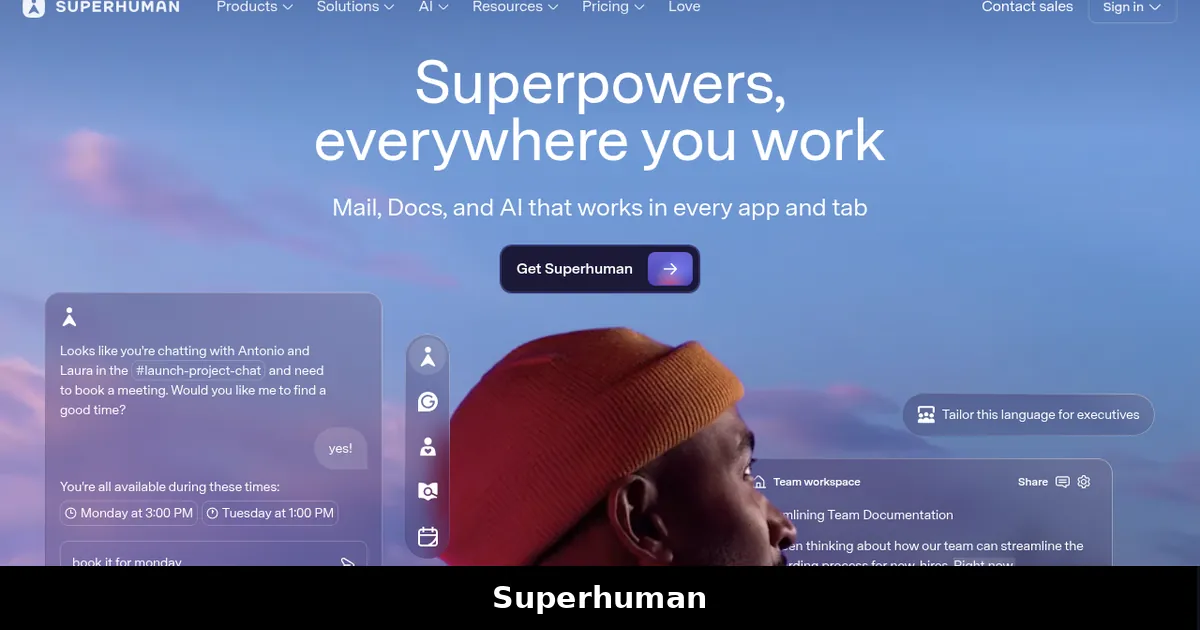
- Superhuman, Spark and Shortwave, email apps with their own AI features
- Fyxer, an assistant that drafts replies and sorts your inbox
- SaneBox, for filtering and decluttering without rewriting your mail
- Grammarly, if you only want writing help
Compare them in our guide to the best AI email assistant. Students who use Google's other AI tools can see how to use NotebookLM for studying, and if you want AI out of your browser too, see our best AI browser guide.
Pros and cons of turning Gemini off
- Pros: fewer AI prompts and summaries in your inbox, your email isn't used to personalize Workspace or other Google products, and you can change your mind at any time.
- Cons: there's no Gemini-only switch, so you may lose useful extras like Gmail events in Calendar, and a full opt-out also removes inbox tabs, Smart Compose and summary cards.
FAQ
Can you completely turn off Gemini in Gmail?
For a personal account, yes, as far as the settings allow. Turn off Smart features in Google Workspace to remove Google Workspace with Gemini features, and turn off the other two smart feature settings for the fullest opt-out. On a work or school account, your admin controls whether Gemini is available.
Does turning off smart features delete my emails?
No. The settings control how your content is used to provide and improve smart features. Your emails stay in your inbox.
Will I lose Smart Compose and inbox tabs?
Inbox tabs, Smart Compose and Smart Reply are controlled by the "Smart features in Gmail, Chat, and Meet" setting. If you only turn off Smart features in Google Workspace, you keep them.
Why does Gemini still appear in Gmail at work?
On work and school accounts, administrators decide whether Gemini features are on for Gmail. Google says they're on by default, so ask your IT admin if you want them turned off.
Do I need to change the setting on every device?
Google says the changes apply across all devices where you're signed in, but some changes made on a computer don't appear in the mobile app. If they don't, update the app or change it there too, and repeat for each Google account you use.