How to use Superhuman Go: install the Chrome or Edge extension (or the Mac or Windows desktop app), sign in, optionally turn on Use Superhuman Go inside an existing Grammarly install, then start writing where you already work. Free gets you basic inline suggestions and chat; Pro adds connectors, Email Assistant, and custom agents. This guide walks through setup, everyday workflows, student authenticity tools, and when a simpler writing tool is enough.
Facts below were checked against Superhuman and Grammarly help pages on October 11, 2026.
What Superhuman Go is (and is not)
On October 29, 2025, Grammarly renamed its company to Superhuman and launched a suite that includes Superhuman Go, Grammarly, Docs (Coda), and Mail, according to Grammarly's "What is Superhuman?" help article. The Grammarly writing product kept its name. Superhuman Go is the cross app AI assistant that sits in the Superhuman suite and can run writing agents (including Grammarly) where you type.
Go is not a separate chatbot you must copy and paste into. Superhuman's product page describes it as proactive help inside the apps and sites you already use: underlines as you type, a side panel, highlight to ask actions, Slack mentions, and a full screen Go app for longer tasks. Classic Grammarly underlines still work; generative features move into Go if you switch the browser experience.
If you only want a side by side of Grammarly versus a paraphraser, start with our Grammarly vs QuillBot guide, then come back here for the Go setup path.
What you need before you start
- A Superhuman or Grammarly account (you can start free)
- One install path: Chrome, Edge, Mac desktop, Windows desktop, web at go.superhuman.com, or mobile (iOS or Android)
- Optional: an existing Grammarly extension or desktop app if you prefer to enable Go from Grammarly settings instead of installing Go alone
Per Grammarly's Superhuman Go app guide, connectors that pull context from Gmail, Slack, calendar and similar apps need a paid subscription. The Go surface itself is available on free plans with limited chat and limited inline agent suggestions.
How to install Superhuman Go
Pick the path that matches how you write most days.
Browser extension (Chrome or Edge)
Superhuman's browser extension install guide covers both browsers:
- In Chrome, open the Chrome Web Store listing for Superhuman Go: AI Assistant and click Add to Chrome.
- In Edge, open the Edge Addons listing for Superhuman Go: AI Assistant, click Get, then Add Extension.
- Pin the Superhuman icon, sign in, and open a doc or email. Start typing so Go can attach to the field.
Desktop (Mac or Windows)
From Superhuman's Windows and Mac install guide:
- Download the Superhuman Apps Manager (use the macOS 11 specific link on that page if you are still on Big Sur).
- Install the manager, then open the Superhuman icon in the menu bar (Mac) or system tray (Windows).
- Choose Open Superhuman, then click Install next to Superhuman Go for your OS.
- Open any app or website and start typing; Go checks text as you write.
Already on Grammarly? Turn Go on in settings
If you already use the Grammarly extension or desktop app, open Grammarly settings and enable Use Superhuman Go. Grammarly Support's Go app guide says that turns Go on inside your existing Grammarly client: no separate Chrome install required for that path. You can switch back if you prefer the classic Grammarly only experience.
Web and mobile
- Web: sign in at go.superhuman.com for the full screen Go app.
- Mobile: Superhuman lists iOS and Android apps for Go. Use them for chat and tasks on the go; heavy writing still works best on desktop or browser.
Keyboard shortcuts from the Go app guide: Ctrl + Cmd + Shift + G on Mac, Ctrl + Alt + Shift + G on Windows, to open a chat with Go.
How to use Superhuman Go day to day
Write with Grammarly agents in the flow
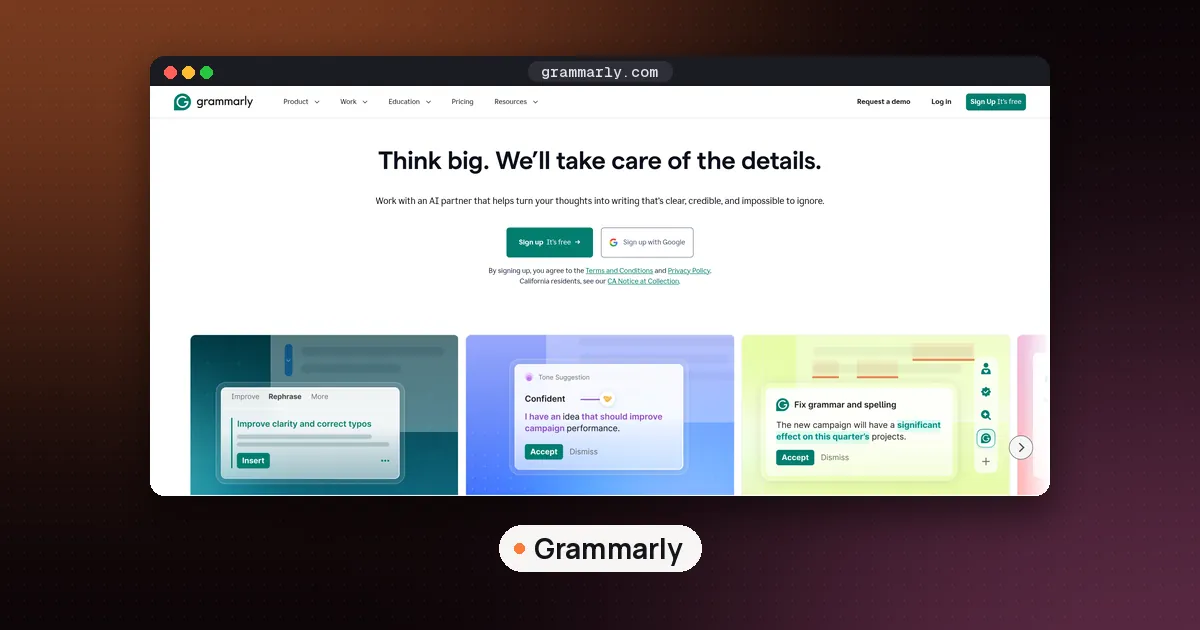
With Go running, the Grammarly agent underlines grammar, spelling, clarity and tone as you type: same job Grammarly has always done. On paid Go plans you can chat with the agent to change which underlines you want, add dictionary entries, and personalize suggestions without digging through old preference screens.
Useful moves:
- Keep writing; accept or dismiss underlines like classic Grammarly.
- Highlight a paragraph and ask Go to tighten tone for a manager, client or classmate.
- Open the Agents panel for specialized writing agents (Paraphraser, Reader Reactions, Plagiarism Checker, and others listed on the Grammarly agents page).
If you only need a lightweight readability pass without an account ecosystem, Hemingway Editor still covers grade level and clarity highlights. See Is Hemingway Editor free?. For paraphrase first rewriting on a budget, QuillBot remains a common student pick.
Triage email and drafts (Pro)
On Pro and above, Go's Email Assistant can sort mail and draft replies using your voice and connected context, per the Go pricing page. Connectors for Superhuman Mail, Gmail, Outlook and Calendar are paid tier features. Nothing in Superhuman's public positioning says drafts auto send without you; treat every draft as something you review before send. The same habit you should keep with any AI email tool.
If your main need is a dedicated AI inbox rather than writing plus agents, compare options in our best AI email assistant guide, including Superhuman Mail and Shortwave.
Prep meetings and summarize long threads
Ask Go to summarize a long email or document on the page, draft a meeting brief from connected notes, or turn rough bullets into a status update. The Go app guide emphasizes that Go keeps working in the cloud after you start a task, so you can close the tab and pick up later on another device. Review anything that needs approval in your task list before it leaves your account.
Build or install agents (Pro+)
The Agent Store holds ready made agents. Pro can start building custom agents; Business expands that capacity. Custom agents are useful when you repeat the same workflow (weekly status, sales follow up, lecture notes cleanup). Skip building agents on day one: master underlines and one highlight to ask habit first.
Student focus: AI Detector and AI Rewriter
On October 9, 2026, Superhuman published Grammarly's Writing Agents Become Proactive with Go, aimed at students who draft with AI and still need the final paper to sound like them. Two agents matter:
- AI Detector: flags passages that look AI generated and shows a percentage estimate. Superhuman's AI Detector user guide states it is a paid feature (via Go/docs agents for Premium and Pro users, or via Grammarly's Google Docs and desktop plagiarism/AI entry points on Pro, Plus, Business and Education plans). The score is directional, not a verdict your professor's tool will match one for one.
- AI Rewriter: highlights phrases AI often uses and suggests alternatives that sound less model like, per the AI Rewriter user guide. Available in docs for Grammarly Pro and Plus, with gradual rollout.
Important caveats from those guides:
- Using Grammarly's own rewrite agents can raise the AI detection score, because those rewrites come from an LLM. If your school bans AI assisted rewriting, use Detector for awareness and edit by hand.
- False positives can happen. Treat the percentage as a presubmission check, not proof of cheating or innocence.
- Follow your course policy. A detector does not replace citation rules or instructor guidelines.
Students stacking study tools can also browse our best AI tools for students roundup after Go is set up.
Free vs Pro: what actually changes
Checked on the Superhuman Go plans page on October 11, 2026:
| Item | Free ($0) | Pro ($12/member/month billed annually; $15 monthly) | Business ($33 annual / $40 monthly) |
|---|---|---|---|
| Inline Grammarly / agent suggestions | Basic / limited | Full Grammarly access with customization trial | Same, plus more connectors |
| Chat with tabs and apps | Yes (limits apply) | Expanded trial of full chat | Expanded |
| Email Assistant | No | Yes | Yes |
| Connectors (Gmail, Calendar, Slack, …) | No | Personal connectors | Team connectors (Jira, Linear, Asana, …) |
| Custom agents | No | Limited | Expanded |
| Docs / Mail suite pieces | Limited trials | Grammarly included on annual Pro; Docs/Mail as noted on page | Suite addons |
Prices move. Confirm on the plans page before you buy. Enterprise is custom and adds Salesforce class connectors plus admin controls.
Who Superhuman Go is for
- Writers and students who already live in Google Docs, Word, LMS pages and email and want underlines plus optional authenticity checks
- Professionals who want one assistant that can draft, brief and (on Pro) touch inbox and calendar without opening a separate chatbot tab
- Teams that want shared agents and connectors under Business or Enterprise
Skip Go (or stay on free Grammarly alone) if you only need offline readability, if your workplace bans third party AI extensions, or if you want a keyboard launcher for apps and snippets, in that case Raycast is a different tool category.
FAQ
Is Superhuman Go free?
Yes, you can start at $0. Free includes basic inline suggestions, chat with limits, and synced conversations across desktop, mobile and browser. Connectors, Email Assistant, proactive writing agents and custom agents need Pro or higher. Check superhuman.com/plans/go for the live matrix.
Do I need both Grammarly and Superhuman Go?
No. You can install Go alone, or enable Use Superhuman Go inside Grammarly. Standalone Grammarly still exists for people who only want writing underlines. Go adds the agent layer, side chat and (on paid plans) connectors. Writing suggestion quality is the same core Grammarly engine either way, per Superhuman's Grammarly agent page.
Does Superhuman Go work on Windows and Mac?
Yes. Install via the Superhuman Apps Manager, then install Superhuman Go for your OS from the manager. Browser extensions cover Chrome and Edge. Mobile apps cover iOS and Android. The full screen web app is at go.superhuman.com.
Will AI Detector match my professor's tool?
Not exactly. Grammarly's detector uses its own model. Scores can differ from Turnitin, GPTZero or Copyleaks. Superhuman's help docs say results should be directionally aligned with other major detectors but are not a guarantee of matching percentages. Use it as a self check, then follow your school's rules.
Can Superhuman Go send email without me?
Treat Email Assistant drafts as drafts. Review, edit and send yourself. That is the safe default for any AI inbox feature, including Go's Pro Email Assistant and dedicated clients like Shortwave.
Superhuman Go vs ChatGPT for everyday writing?
ChatGPT is strongest when you open a chat to brainstorm or research from scratch. Superhuman Go is built to stay inside the doc or email you already have open, with Grammarly underlines and optional agents. Many people use both: draft ideas in a chatbot, finish and authenticity check in Go.
Bottom line
Install Go on the browser or desktop you write in most, keep Grammarly underlines on, and try one proactive habit (highlight to rewrite or a presubmit AI Detector pass) before you buy Pro. Upgrade when you need connectors or Email Assistant. For paraphrase only or readability only needs, QuillBot or Hemingway may still be simpler, and our comparison guides above help you choose without stacking three subscriptions you will not open.