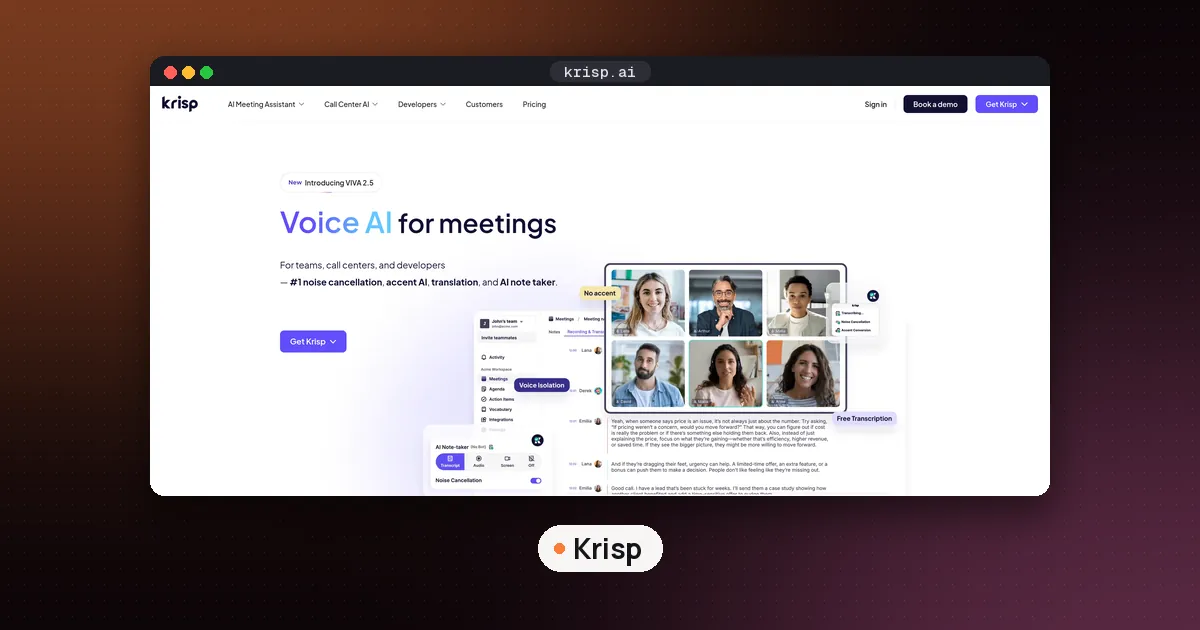
To turn off the AI note taker in Krisp, open the Krisp desktop app and set the AI Note Taker mode to Off before your call starts, then keep it off for the whole call. To stop it from switching itself back on for the next meeting, turn off Automatic Activation in Krisp's settings. If you also invited Krisp Bot to meetings, remove [email protected] from those calendar invites, because the bot joins on its own whenever it is invited.
Noise cancellation keeps working after you do this. Krisp started as a noise cancellation app and later added meeting notes, so the two features are separate switches. This guide covers each place the note taker can come from (the desktop app, the bot and your calendar), how to delete what was already saved, and when you might want the opposite: a note taker you control better. Everything below was checked against Krisp's own help center, release notes, pricing page and privacy policy on October 27, 2026. Menus move between versions, so if a label looks different in your copy, search the Krisp help center for the same name.
How to turn off AI note taker in Krisp, step by step
There are three separate things that can produce notes, and you may need to switch off more than one.
- Set the Note Taker mode to Off. Krisp's help page on recording lists four modes in the AI Note Taker section of the app: Transcribe only, Audio Recording, Screen Recording and Off. Pick Off. Krisp's recording FAQ says that to disable transcription and recording for a call, the Note Taker has to be off before the call starts and stay off throughout. If you switch it off halfway, the part before that point was already captured.
- Turn off Automatic Activation. Krisp added this setting in version 2.54.6. Its release notes place it under Krisp App Settings, General, System settings, and say it is on by default. With it off, the note taker no longer starts by itself when a meeting begins. You can still start a recording by hand when you want one.
- Remove Krisp Bot from scheduled meetings. Krisp Bot is a separate participant that joins Zoom, Google Meet and Microsoft Teams calls. According to Krisp's bot help page, you invite it by adding
[email protected]as a guest on a calendar event, and it then joins at the scheduled time even if you are not there. Turning off the desktop Note Taker does not uninvite it. Open each future event (recurring meetings especially) and delete that guest. - Revoke the bot from a live call if it is already in one. Krisp's help page says you can revoke it from the app at any time, and once removed it cannot rejoin that same session.
If you only do one thing, do step 1 before every call and step 2 once. Step 3 matters only if you or a teammate ever added the bot by email.
Keep noise cancellation, drop the notes
Many people install Krisp for clean audio and never wanted transcripts. Krisp's pricing FAQ says noise cancellation is built into every plan and that you can disable the Meeting Assistant if you only want Krisp for clean audio. In practice that means leaving the Krisp Microphone and Krisp Speaker selected in your calling app with noise cancellation on, and leaving the Note Taker set to Off.
The privacy difference is real. Krisp's privacy policy says that when you use the noise cancellation feature only, no audiovisual data leaves your device and the company does not store or have access to your conversations. When the AI Meeting Assistant is on, the same policy says Krisp may store transcripts, recordings and summaries on its servers and share meeting content with third party service providers to generate AI summaries.
One detail catches people out. The policy also says that in Transcribe only mode, if Krisp detects speech that is not in English, it may record the relevant audio to make a multilingual transcript, then delete that audio once the transcript is generated. So Transcribe only is not the same as nothing. If you want no transcript and no audio at all, the mode you want is Off.
Stop the reminders and the calendar link
Turning off the note taker does not remove every meeting prompt. Krisp's AI Meeting Assistant settings page lists a few others you may want off too:
- Show widget, which pops up a Krisp widget at the start of each meeting.
- Upcoming meeting notification, which alerts you before each meeting.
- Meeting recap, which gives quick access to your recent meeting content.
- Show calendar events, which lists your calendar meetings in the app.
- Launch at startup, if you would rather open Krisp only when you need it.
If you want Krisp to stop reading your calendar entirely, Krisp's calendar help page says to go to Settings, then Calendar, and click Disconnect next to the connected account. The same page notes that turning on extra calendars never makes the bot join their meetings by itself. The bot joins only meetings it was invited to.
Delete notes and recordings Krisp already saved
Switching the note taker off stops new capture. It does not delete old meetings. Krisp's delete your meetings help page describes two routes:
- Move to Trash, then empty it. Meetings sit in Trash for 30 days and still count toward your storage until then. To delete one for good, open Trash and choose Delete forever, or use Empty trash to remove everything there at once.
- Delete from Manage Storage or Shared with me. Click your profile icon in the bottom left, open Manage Storage, find the meeting and choose Delete Meeting. This deletes it permanently without the Trash step. Krisp then asks whether to keep the transcript, the notes or both, so you can drop the recording and keep the text if you like.
Both routes are permanent once finished, so export anything you need first. Krisp's meetings page help says transcripts can be downloaded as a plain text file. If your team admin turned on automatic deletion of team members' meetings, Krisp says meetings are removed when that period ends, even if they are still in Trash.
Two more points from Krisp's own pages. Its recording FAQ says that if your account is removed, your recordings are removed from the cloud with the rest of your data, and that this cannot be undone. Its privacy policy says it keeps recordings and notes until you tell it to delete them or delete your account, and gives [email protected] as the address for deletion requests.
Tell people when you do record
If you decide to keep the note taker on for some calls, Krisp has a consent setting. Its recording help page says you can go to Settings, then Privacy and Consent, and enable Notify others you're using Krisp. The 3.4.4 release notes describe this as a customizable message posted in the meeting chat, supported in Zoom at the time. Krisp also warns that some platforms block chat messages or audio prompts, so tell people another way as well, for example in the invite or at the start of the call. Recording rules differ by location and by employer, so check yours.
Krisp AI note taker cost
You do not need to cancel a plan just to stop the notes, but price often comes up when people decide whether to keep Krisp at all. Here is what Krisp's pricing page listed on October 27, 2026 for its Meeting AI plans:
| Plan | Monthly billing | Annual billing | Notable for this topic |
|---|---|---|---|
| Free Trial | $0 for 7 days | Not applicable | All premium features, no card |
| Core | $16 per user per month | $8 per user per month | Note taker, noise cancellation, 10 GB storage |
| Advanced | $30 per user per month | $15 per user per month | Admin can enforce the recording mode, 60 GB storage |
| Enterprise | Custom | Custom | SSO, HIPAA compliance, on device transcription option |
So Core costs $16 per user each month on monthly billing, or $8 a month when billed annually, and Advanced costs $30 or $15. For teams, the useful detail is on Advanced: the comparison table lists an Enforce recording mode control, and the plan card calls it note taking mode enforcement. If your company wants everyone's note taker off (or on a specific mode), that is the admin setting to ask about rather than relying on each person's toggle. Prices change, so confirm on Krisp's page before you buy.
Is the Krisp AI note taker HIPAA compliant?
Only on the top plan, by Krisp's own comparison table. The pricing page shows HIPAA compliance under Enterprise only, not Core or Advanced, and lists BAA signing as available on Advanced only for teams with 100 or more seats. If you work in healthcare and you are not on a plan with a signed BAA, the safest setting for patient calls is the one this guide is about: Note Taker set to Off, with noise cancellation alone. Ask your compliance team before recording any protected health information.
If you still want notes, just not these
Some people turn off Krisp's note taker because they want more control, not because they want no notes. A few options:
- Write your own notes in a notes app. Reflect is a notes app with backlinks, end to end encryption and a built in AI assistant, so you can type rough notes during a call and tidy them afterward without anything recording the audio.
- Use a note taker inside your workspace. Notion AI can take meeting notes inside Notion, which keeps notes next to your projects. If you already pay for Notion, our Notion AI credits guide explains how usage is counted.
- Use the meeting app's own notes. Zoom has a built in notes feature covered in our Zoom My Notes guide, and Google Meet has Gemini notes, covered in AI note taker for Google Meet.
- Pick a different assistant. Our roundup of the best AI note takers for meetings compares the main options, and Does Granola record audio? explains a tool that keeps transcripts but not recordings.
- Save links for later instead of transcripts. If what you really want is to keep the documents people share in calls, a read later app such as Wallabag does that. See our guide to the best read it later app.
FAQ
Does turning off the Krisp note taker turn off noise cancellation?
No. They are separate features. Set the AI Note Taker mode to Off and keep Krisp Microphone and Krisp Speaker selected with noise cancellation on. Krisp's pricing FAQ says you can disable the Meeting Assistant if you only want clean audio.
Why did Krisp start taking notes again?
Most likely Automatic Activation is still on, which is the default, or Krisp Bot is still invited to a recurring meeting. Turn off Automatic Activation in the General section of settings, and remove [email protected] from your calendar events.
How do I remove Krisp Bot from a meeting?
During a call, revoke it from the Krisp app. It cannot rejoin that session afterward. For future meetings, delete [email protected] from the guest list in your calendar, since an invited bot joins at the scheduled time on its own.
Does Transcribe only mode record audio?
Usually it keeps no audio, but Krisp's privacy policy says that when it detects speech other than English in Transcribe only mode, it may record that audio to build the transcript and then delete it once the transcript is ready. Choose Off if you want nothing captured.
Can my company force the note taker off?
On the Advanced plan, Krisp's pricing page lists an admin control to enforce the recording mode for the team. Core does not list it. Ask your Krisp admin which mode your team is set to.
Will deleting my Krisp account delete my recordings?
Yes. Krisp's recording FAQ says recordings are removed from the cloud along with all your other data when the account is removed, and that it cannot be reversed. Export transcripts you want to keep first.