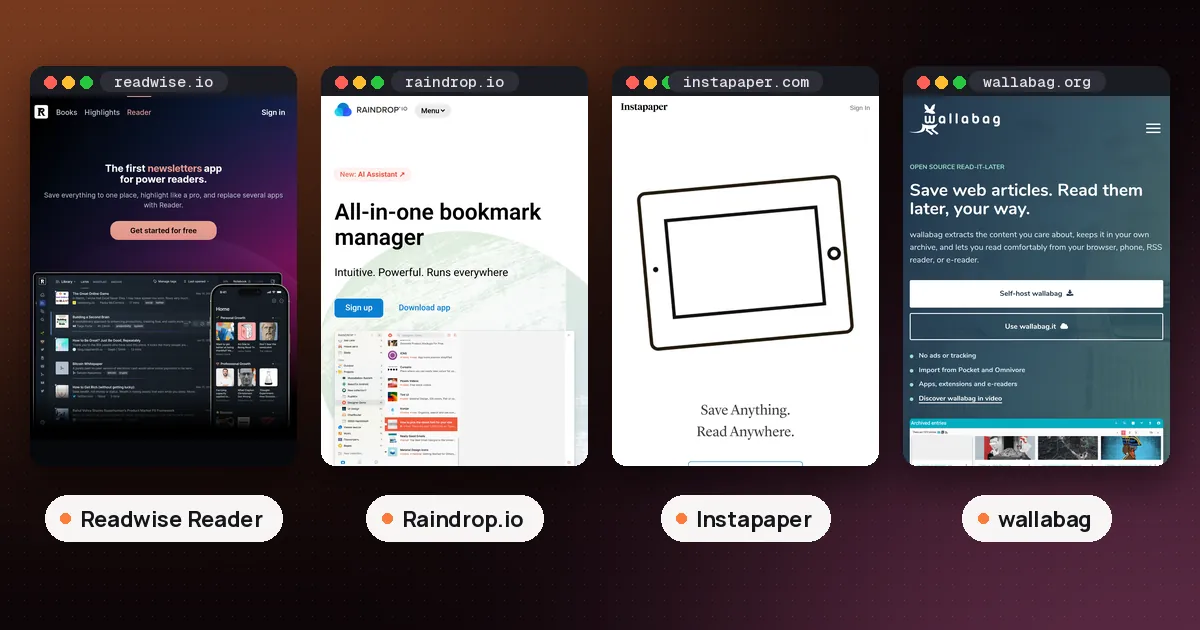
In the Readwise Reader vs Raindrop choice, pick Readwise Reader if you read long articles, PDFs, newsletters and RSS feeds and want to highlight them, ask an AI about them and send your notes elsewhere. Pick Raindrop.io if you mainly save links to find again later and want that for free. Reader has no permanent free plan (a 30 day trial, then $7.99 a month billed yearly for Reader only), while Raindrop is free with no time limit and charges only for extras like full text search, a web archive and its AI assistant. Many people end up using both, because Raindrop can sync its highlights into Readwise.
The two apps get compared a lot because both picked up readers when Mozilla shut down Pocket, and both save pages from a browser extension and a phone share sheet. Underneath, they are built for different jobs. This guide compares them on price, reading, highlighting, AI, extensions and moving your data, using each company's own pricing pages and help docs, all checked on November 2, 2026. We did not test either app first hand for this guide.
Readwise Reader vs Raindrop at a glance
| Item | Readwise Reader | Raindrop.io |
|---|---|---|
| What it is | A reading app for everything you plan to read | A bookmark manager with a reader view |
| Free option | 30 day free trial | Free plan with no time limit |
| Paid price | Reader only: $7.99 a month billed yearly or $8.99 monthly. Full Readwise: $9.99 or $12.99 | Pro, monthly or yearly (prices on Raindrop's checkout page) |
| Highlights | Text and images, web highlighting, notes | Free, up to 100 per bookmark; notes on highlights need Pro |
| AI | Ghostreader (summaries, questions, definitions, translation) | Stella (chat with your bookmarks), Pro only, in beta |
| Feeds and newsletters | RSS feeds and newsletters in a Feed section | Not the focus |
| Listening | Text to speech included | No text to speech |
| Best for | Heavy readers and highlighters | Saving and organizing links |
How Readwise Reader works
Readwise Reader is a place for everything you intend to read. Readwise's Reader pricing page lists articles, PDFs, EPUBs, emails, YouTube, podcasts, RSS and X threads, with highlighting inside the app or through the browser extension, Ghostreader AI, full text search and text to speech.
Reader splits your reading into two areas. Readwise's help docs explain that your Library holds what you saved on purpose (with locations such as Inbox, Later, Archive and Shortlist), while the Feed holds content pushed to you, like RSS subscriptions and newsletters, divided into Unseen and Seen. When something in the Feed is worth keeping, you move it to the Library.
Ghostreader is the AI layer. It can summarize, explain and translate a document, and its prompts can be edited or switched off. By default it automatically summarizes documents you save yourself, but not Feed items. Readwise says you can turn on Feed summaries by adding your own OpenAI API key, which then uses your API credits. On web and desktop, a newer Global Ghostreader searches across your whole library and answers with citations that link back to the source. If you don't want AI at all, you can turn Ghostreader off in your account preferences.
Highlights are the main reason people pay for Reader. You can highlight text and images, add notes, and with the Full Readwise plan send everything to the Highlights app for daily review and export to tools such as Notion and Obsidian. The pricing page also says your AI agent can reach your library and highlights through a CLI, an MCP server, an API and a ChatGPT connector.
How Raindrop.io works
Raindrop.io is a bookmark manager first. You save links, files and pages into collections, add tags and filters, and search later. It also has a clean article view, so you can read a saved page inside the app without ads, and highlight as you go.
The free plan is generous. Raindrop's Limits page lists unlimited bookmarks, collections, tags, collaborators per collection and sync devices on Free, with file uploads capped at 100 MB a month. Pro raises uploads to 10 GB a month and 300 MB per file, and adds the Stella AI assistant, a web archive, reminders, annotations, full text search, a broken link checker, a duplicate finder and automatic backups.
The web archive matters more than it sounds. Raindrop's web archive page says Pro saves a copy of every bookmarked page in your Raindrop cloud storage, so the copy stays the same even if the original page changes or disappears. YouTube videos get their transcript saved. The catch: if your Pro subscription ends, archived copies become inaccessible and are deleted after about a month, though your bookmarks stay.
Stella, Raindrop's AI assistant, lets you chat with your bookmarks, summarize or translate an article, and ask it to reorganize collections, with big changes needing your confirmation first. Raindrop says Stella is in beta, available to Pro users, and that your data stays on its own servers and is not used for training.
Price: free bookmarks vs a paid reading app
This is the biggest difference. Raindrop is free indefinitely: its Pro page says you can use it on unlimited devices with unlimited bookmarks and collections on every plan, and collaboration is free. Pro is billed monthly or yearly, yearly is usually about 20% cheaper, and there is a 30 day money back guarantee. Raindrop shows the exact Pro price on its checkout page rather than its help pages, so check it there before you subscribe.
Readwise Reader is paid after a 30 day free trial. The Reader only plan costs $7.99 a month billed yearly ($95.88 a year) or $8.99 month to month, and leaves out the separate Highlights app. Full Readwise, with Reader and Highlights together, costs $9.99 a month billed yearly ($119.88 a year) or $12.99 monthly. Readwise offers 50% off to students and academics if you email hello@readwise.io before subscribing.
Highlighting and notes
Both apps let you highlight, but they treat highlights differently.
Raindrop's highlights help page says highlights are free for everyone, with color coding, and they sync across devices and show up on the original page when you revisit it with the extension installed. The Limits page caps them at 100 per bookmark. Adding a note to a highlight (Raindrop calls it an annotation) needs Pro. You can highlight PDFs and EPUBs inside Raindrop, but not in your browser's built in PDF viewer.
Reader goes further. You can highlight images as well as text, use keyboard shortcuts, add document notes in a Notebook tab, and highlight the open web through the extension. Highlights made on a live page usually appear on the clean article in Reader too, and vice versa. With Full Readwise, those highlights flow into daily review and out to your notes app.
If highlights are where your thinking happens, Reader is the better home. If you highlight a line now and then, Raindrop's free highlights are enough.
Readwise Reader browser extension vs Raindrop extension
The Readwise Reader browser extension saves a clean copy of the page to your Reader inbox when you click its icon or press Alt + R, and you can then highlight right on the site. Readwise's docs say saving through the extension works better than pasting a URL, because the extension captures the content as your browser shows it. There are official versions for Chrome, Firefox and Safari.
The Raindrop extension saves the current page, highlights, or all your open tabs at once, and can open the full app as a sidebar in Chrome, Edge and Firefox. Raindrop's extension page lists official versions for Chrome, Safari, Edge and Firefox, and says Arc, Vivaldi, Opera and Brave can use the Chrome version.
Is there a Readwise Reader Edge extension?
There's no separate Edge listing in Readwise's docs. Instead, Readwise says the Chrome extension works in any Chromium browser, including Edge, Brave and Arc, so Edge users install it from the Chrome Web Store.
On phones, both apps save through the share sheet on iOS and Android. Reader's Android app also runs on Android e-ink devices such as the Onyx BOOX, according to Readwise.
Using Readwise Reader and Raindrop together
You don't have to choose. Raindrop's Readwise integration page describes two connections. You can sync highlights from your Raindrop bookmarks into Readwise, and you can import your Reader library into Raindrop from a CSV export. Readwise's own docs describe the highlight sync from Raindrop as a beta that brings in text highlights (not images), with tags and annotations, syncing through the day with a Sync Now button.
A sensible split: keep every link you might want again in Raindrop's free plan, and put the long reads you'll actually study into Reader. That way your bookmark library stays free, and you pay only for the reading tools.
Moving between Readwise Reader and Raindrop
Both apps let you leave. Raindrop's export page offers HTML, CSV and TXT exports of your whole account, a collection or selected bookmarks, with highlights and notes included in a full backup (uploaded files download separately as a ZIP). Pro adds automatic daily backups, keeping up to 30, with optional copies to Dropbox, Google Drive or OneDrive.
To move from Raindrop to Reader, export a CSV from Raindrop and upload it on Reader's Add to Library page. Readwise notes the file needs a column named URL, and a Title column is optional. To go the other way, export a CSV from Reader and upload it on Raindrop's Import page, which also accepts Instapaper, Pocket and Omnivore exports.
Readwise Reader vs Pocket, and open source options
Pocket is gone. Mozilla's Pocket farewell page says it has phased out the web, Android, iOS and macOS apps and the browser extensions. If you used Pocket to read, Reader is the closer match for heavy readers, and Instapaper is the simplest swap; our how to use Instapaper guide walks through setup. If you used Pocket as a link list, Raindrop fits that habit. Our best read it later app guide compares all the main Pocket alternatives.
Neither Reader nor Raindrop is open source. If that matters to you, wallabag is open source software you can host yourself, or pay a small yearly fee for its hosted service.
Which should you pick?
- You read a lot and highlight everything: Readwise Reader.
- You mostly save links to find later: Raindrop.io, free plan.
- You want newsletters and RSS in one reading app: Readwise Reader.
- You want pages saved even if they vanish from the web: Raindrop Pro, for the web archive.
- You're a student on a budget: Raindrop for free bookmarks, plus Reader at 50% off if you need serious highlighting. Our best AI note taking app guide covers where those notes can go next.
- You want both: keep links in Raindrop and sync its highlights into Readwise.
FAQ
Is Readwise Reader better than Raindrop?
For reading, yes: Reader handles articles, PDFs, EPUBs, newsletters and RSS with deeper highlighting, text to speech and Ghostreader AI. For saving and organizing links, Raindrop is better and costs nothing on its free plan.
Is Raindrop.io free?
Yes. Raindrop's free plan has no time limit and includes unlimited bookmarks, collections, tags and devices, plus free highlights and collaboration. Pro adds full text search, the web archive, annotations, reminders, backups and the Stella AI assistant.
Is Readwise Reader free?
No. Readwise Reader has a 30 day free trial, then costs $7.99 a month billed yearly or $8.99 monthly for Reader only. Students and academics can get 50% off by emailing Readwise before subscribing.
Can I sync Raindrop highlights to Readwise?
Yes. Readwise has a Raindrop import that syncs text highlights, with tags and annotations, several times a day, and you can trigger it with Sync Now. Readwise lists the integration as a beta, and image highlights are not imported.
What is a good Readwise Reader open source alternative?
wallabag is the best known open source option. You can install it on your own server or use its official hosted service, wallabag.it. It has no AI features like Ghostreader, but it lets you import and export your articles.
Does the Readwise Reader browser extension work in Edge?
Yes. Readwise says its Chrome extension works in any Chromium browser, including Edge, Brave and Arc. Install it from the Chrome Web Store and save pages with the icon or Alt + R.