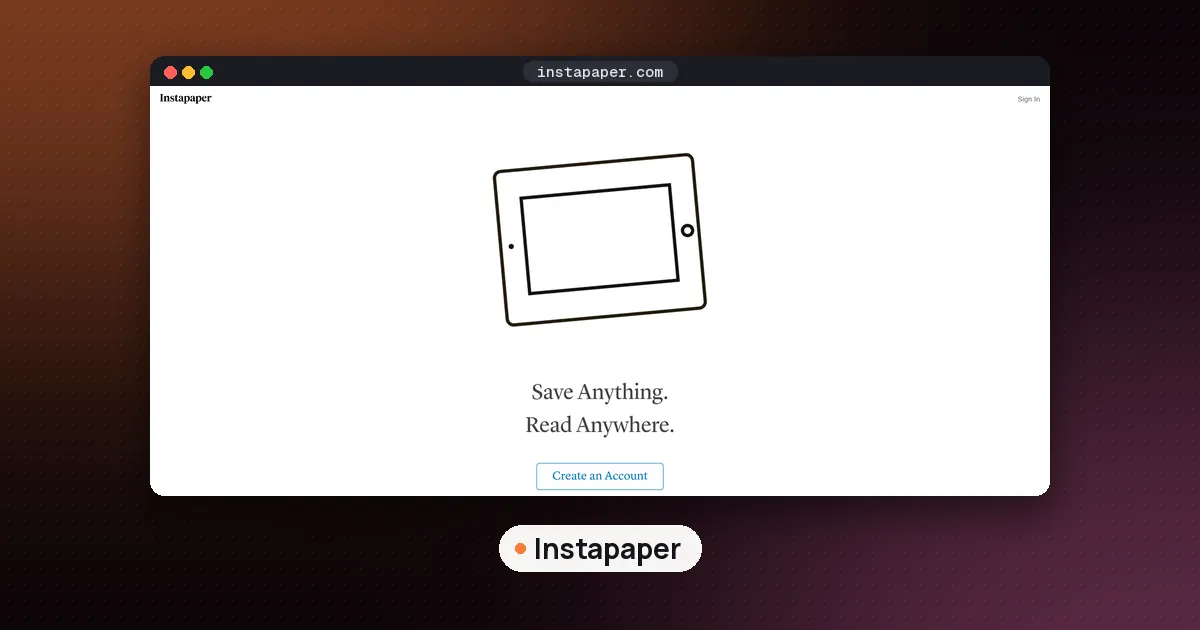
Here's how to use Instapaper in three steps: create a free account, save articles with the browser extension or your phone's share menu, then read them later in the Instapaper app or on the web, even offline. Everything you save lands in Home, your unread queue, and you archive each article when you're done. The free plan saves unlimited articles and syncs across web, iOS and Android, so you can do all of this without paying.
This guide walks through setup on each device, the extension in Chrome and Edge, reading and listening, Kobo and Kindle, and exactly what Premium adds. Features and prices come from Instapaper's Premium page and the official Instapaper documentation, checked on October 14, 2026.
How to use Instapaper: the basic workflow
Instapaper is a read it later app. You save a link when you find it, and Instapaper strips the page down to a clean, readable article you can come back to on any device. The habit is simple:
- Save anything you don't have time to read right now.
- Read from Home when you have a quiet moment, on your phone, tablet, computer or e-reader.
- Archive each article when you finish, so Home only shows what's left.
- Keep the good bits by liking the article or highlighting a passage.
Your library has four built in sections, according to Instapaper's organizing guide:
| Section | What it holds |
|---|---|
| Home | Your unread queue. Every new save lands here first. |
| Liked | Articles you marked with the heart. Liking doesn't move them out of Home. |
| Archive | Finished articles. They leave Home but stay searchable. |
| Notes | Your highlights and notes from every article, gathered in one place. |
Step 1: Create your account and install the apps
Sign up for a free account at instapaper.com or in the mobile app. Then install Instapaper from the Apple App Store on iPhone or iPad, or from Google Play on Android. The apps let you read saved articles offline, which is handy on a plane or the subway.
You don't need Premium to start. Use the free plan for a week or two and upgrade only if you miss a specific Premium feature (covered below).
Step 2: Save articles from your browser
On a Windows, Mac or Linux computer you have two ways to save, as Instapaper's saving guide explains.
How to use the Instapaper Chrome extension
- Install the Instapaper extension for your browser. Official extensions exist for Chrome, Safari and Firefox.
- Open any article and click the Instapaper icon in your toolbar.
- A banner confirms the save. From that banner you can add tags, choose a folder, send the article to Kindle or archive it, without leaving the page.
Tip: pin the extension to your toolbar so saving takes one click.
How to use Instapaper with Edge
There's no separate Edge listing to hunt for. Instapaper says its Chrome extension works in Microsoft Edge and other Chromium based browsers, such as Brave and Opera. Install the Chrome extension in Edge, pin it, and it behaves the same way.
Save by pasting a link
If you can't install extensions, for example on a locked down work computer, go to instapaper.com, click the + at the top of your article list, paste the URL and click Add.
Step 3: Save from your phone
Once the app is installed, you can save from almost any app using the share sheet. Instapaper's mobile saving guide lists these steps:
- In your browser, news app or social app, tap Share and choose Instapaper.
- Optionally pick a folder, add tags or archive it while the save panel is showing.
- Swipe down, or wait a few seconds, and the panel disappears.
On iPhone, if Instapaper isn't in the share row, swipe the icons left, tap More and select Instapaper. You only need to do that once. iOS also lets you set how long the save panel stays on screen, from None (fastest, no options) to Long.
You can also copy a link, open the Instapaper menu, tap + then Add Link, and paste it.
Step 4: Save newsletters and emails
Every account has a personal Save to Instapaper email address, shown in the email saving docs when you're signed in. Use it three ways:
- Forward an email or write a new one to that address. Instapaper uses the subject line as the article title.
- Email a single link by pasting it into the message body.
- Subscribe to newsletters with that address, so they arrive in Instapaper instead of your inbox.
There are also dedicated addresses that save straight into a folder. Premium members can attach a PDF to an email to save it.
This is one of the most useful tricks in the app. Moving newsletters out of your inbox makes email easier to manage, which pairs well with an AI email assistant.
Step 5: Organize with folders and tags
Instapaper's docs give a simple rule: use a folder when an article has one clear home, and a tag when you want to find it from several angles.
- Folders are exclusive. An article lives in one folder at a time, so keep a handful of broad buckets, like Work, Recipes and Travel.
- Tags are flexible. An article can carry many tags, such as
longreadsorto-share, and tags work across folders, Home and Archive.
Don't over organize. Most people do fine with Home, Archive and two or three folders.
Step 6: Read, highlight and summarize
Open an article in the app or on the web and adjust fonts, sizes and themes until it's comfortable. While you read you can highlight passages and add notes. The free plan allows 5 notes a month; Premium makes notes unlimited.
Instapaper also has AI Summaries. According to the Summaries docs, you open the three dot menu in an article and choose Summarize. You get a few sentence AI summary plus the article's key sentences, which you can show highlighted in the text and turn into your own highlights. Everyone gets up to 10 summaries a month free, and Premium makes them unlimited. The docs say Summaries aren't available on Android yet.
If you want highlights to end up in your notes, Instapaper lists connections for Obsidian (an official plugin that syncs highlights and notes), Notion and Evernote. Our guide to the best AI note taking app covers where those notes can live.
Step 7: Listen to articles with text to speech
On iOS and Android, open an article, tap the ... menu and tap Speak. The Speak docs say you can set playback from 0.5x to 2.0x and pick a voice under Settings > Voices.
System voices come with the app. AI Voices, 17 higher quality voices covering English (US and UK), Chinese, French, Italian, Japanese, Hindi, Spanish and Portuguese, need Premium, as do text to speech Playlists that queue several articles back to back. Instapaper also supports CarPlay for listening in the car.
If audio matters most to you, a dedicated reader such as Speechify or ElevenReader from ElevenLabs can read anything, not only your Instapaper queue. We compare those two in Speechify vs ElevenReader.
How to use Instapaper on Kobo
Kobo e-readers have Instapaper built in. Instapaper's Kobo guide gives these steps:
- On your Kobo, go to More > My Articles.
- Tap Link with Instapaper.
- Scan the QR code with your phone, or go to kobo.com/instapaper on a computer and enter the code shown.
- Sign in to Instapaper and authorize your Kobo.
- Sync, and your articles appear.
The integration syncs Home, Liked and Archive, and lets you like, archive and delete articles from the Kobo. It doesn't currently support folders, tags, highlights and notes, or some save types such as videos and emails. Articles you've filed in folders won't show up, so leave anything you want on the e-reader in Home.
Is Instapaper free on Kobo?
Yes. Instapaper says the Kobo integration works with a free account, with no limitations. If you use more than one Kobo, sign in on each device separately.
How to send Instapaper articles to Kindle
Kindle works differently: Instapaper emails your articles to your Kindle as a digest. The Kindle setup guide has you copy your Instapaper Kindle sender address from your account settings, add it to the approved email list in Amazon's Kindle Personal Document Settings, then paste your @kindle.com address back into Instapaper.
Both scheduled daily or weekly digests and on demand digests require Premium, and Instapaper's Premium page lists Kindle integration as a Premium feature. If you want articles on an e-reader for free, a Kobo is the better fit.
Is Instapaper free? Free vs Premium
Yes, Instapaper is free for the core job. Premium costs $5.99 a month or $59.99 a year, per the Premium page.
| Feature | Free | Premium |
|---|---|---|
| Save unlimited articles, videos and pages | Yes | Yes |
| Sync across web, iOS and Android | Yes | Yes |
| Folders to organize articles | Yes | Yes |
| Kobo integration | Yes | Yes |
| AI summaries | 10 a month | Unlimited |
| Notes | 5 a month | Unlimited |
| Full text search of all saved articles | No | Yes |
| Permanent archive (copies kept if pages vanish) | No | Yes |
| PDF reader and uploads | No | Yes |
| Kindle integration | No | Yes |
| AI Voices and text to speech playlists on mobile | No | Yes |
| Speed reading up to 3x | No | Yes |
| Ad free website | No | Yes |
Who should pay: people who save hundreds of articles and need to search them, researchers who rely on the permanent archive, Kindle owners, and anyone who listens to articles every day. Everyone else can stay on the free plan indefinitely.
Is Instapaper free? How about Matter?
People comparing the two usually want a free read it later app with good audio. Matter is a free download for iPhone, iPad and the web, with HD text to speech and an AI Co-Reader in its paid tier. It has no Android app, while Instapaper covers both phones and Kobo. If you highlight heavily and want strong export to notes apps, look at Readwise Reader instead. Our best read it later app guide compares all of these side by side.
Tips to keep your Instapaper queue under control
- Save freely, archive ruthlessly. If an article has sat in Home for a month, archive it. It stays searchable.
- Use the email address for newsletters, so long reads don't clutter your inbox.
- Listen on commutes with Speak, and keep reading sessions for articles that deserve attention.
- Turn the best passages into notes and send them to your notes app, so your reading leads somewhere.
FAQ
How do you use Instapaper?
Create a free account, install the browser extension and mobile app, then save articles with one click or the share menu. Read them later from Home on any device, even offline, and archive each one when you finish.
Is Instapaper free?
Yes. The free plan saves unlimited articles, videos and pages, syncs across web, iOS and Android, and includes folders and the Kobo integration. Premium, at $5.99 a month or $59.99 a year, adds full text search, a permanent archive, PDFs, Kindle delivery, AI voices and unlimited notes.
How do I use the Instapaper Chrome extension?
Install it, pin it to the toolbar, open an article and click the Instapaper icon. A banner confirms the save and lets you add tags, pick a folder, send to Kindle or archive.
Does Instapaper work with Microsoft Edge?
Yes. Instapaper says its Chrome extension works in Edge and other Chromium based browsers such as Brave and Opera.
How do I use Instapaper on Kobo?
On the Kobo, go to More, then My Articles, tap Link with Instapaper, and enter the code at kobo.com/instapaper or scan the QR code. Sign in, authorize the device and sync. It works on the free plan, but articles in folders don't sync.
Can Instapaper read articles aloud?
Yes. In the iOS and Android apps, open an article, tap the menu and choose Speak. System voices are included; the 17 AI voices and playlists need Premium.