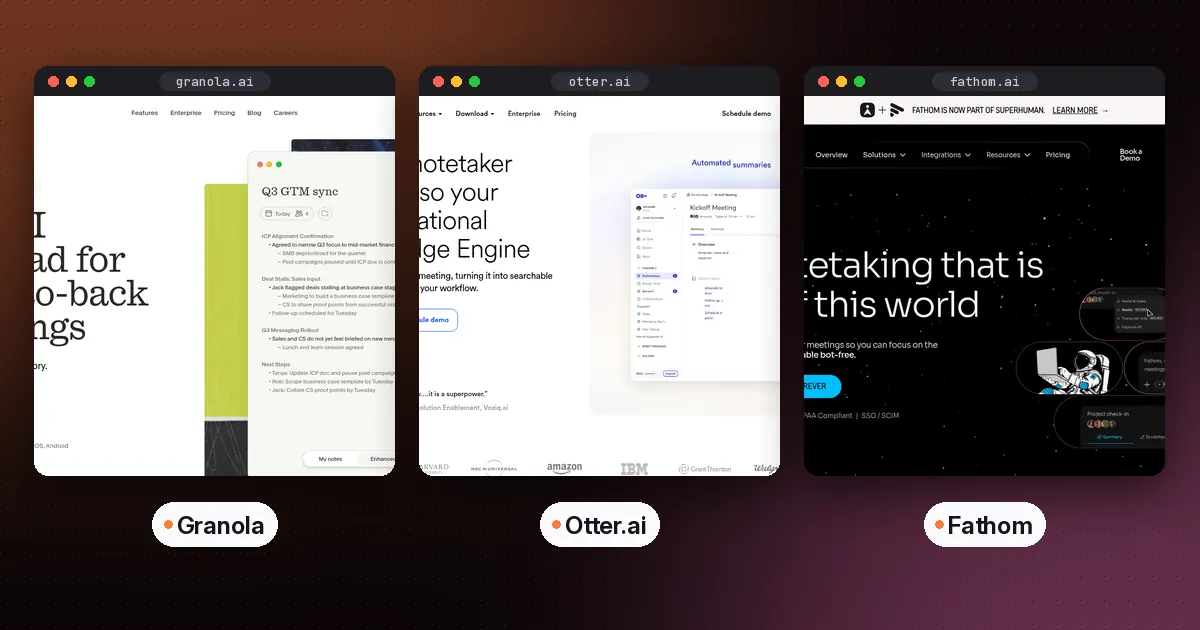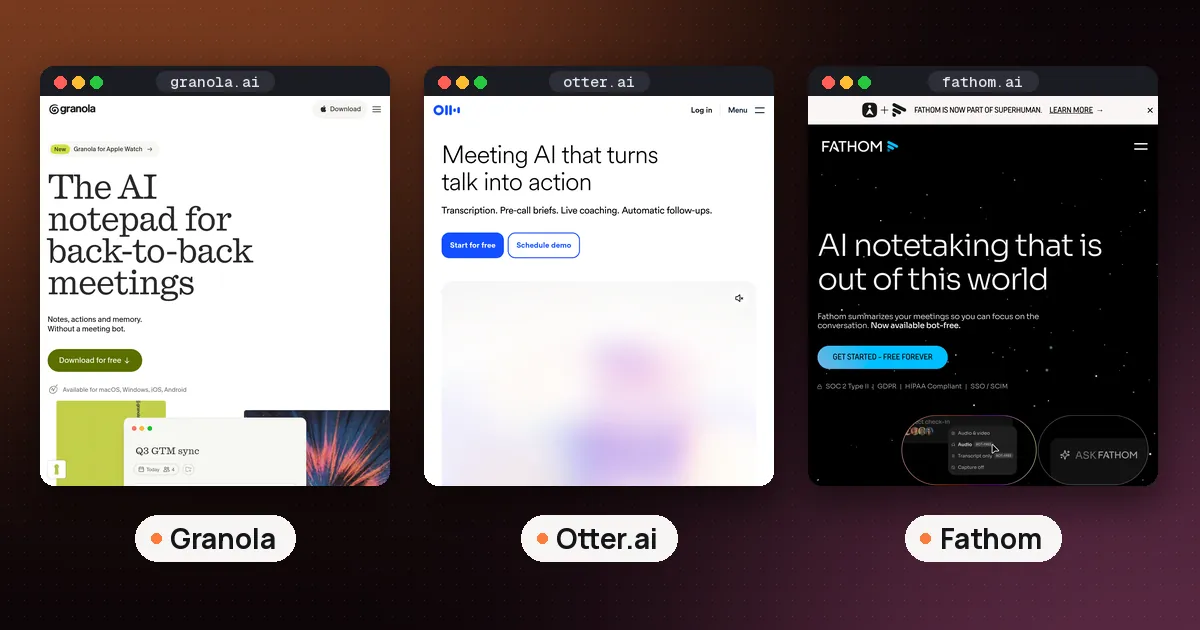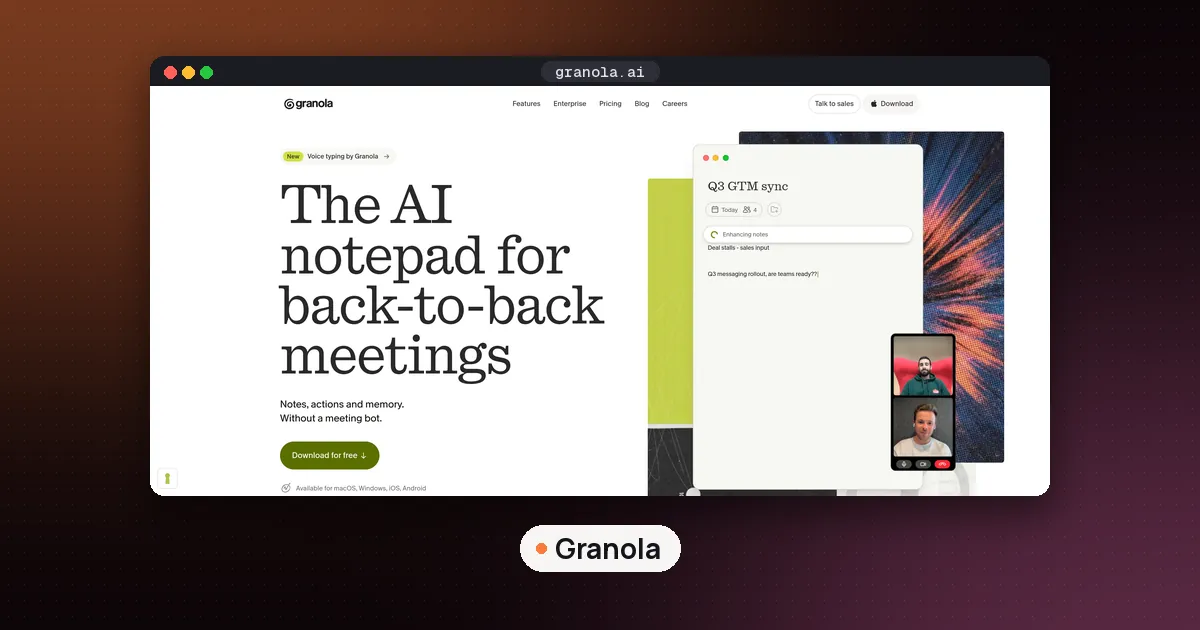
To use Granola AI with Zoom, install the Granola desktop app on your Mac or Windows PC, connect your calendar, allow microphone and system audio access, then click the meeting notification (or open the meeting's note) when your Zoom call starts. That is all the setup Granola needs. Nothing joins the call, and you do not connect your Zoom account, because Granola transcribes the sound on your own computer.
Two optional steps make the notes better and keep you honest with other people on the call: turn on Zoom speaker tags so the transcript shows names, and turn on the automated chat message or the video watermark so everyone knows a note taker is running. This guide walks through each step, the limits, and the fixes for the common problems.
Everything here comes from Granola's help center, pricing page and Zoom guide, plus Zoom's developer documentation, all checked on November 14, 2026. We did not install Granola or run a Zoom call for this guide, so treat menu names as Granola describes them today.
How Granola works with Zoom
Granola's How transcription works page says the desktop app captures audio from your device, so no bot joins the call, and it works the same way for Zoom, Google Meet, Microsoft Teams and other meeting apps. It listens to two channels: your microphone (green bubbles on the right of the live transcript) and your system audio, which is usually the other people on the call (grey bubbles on the left).
That design has three practical results for Zoom users:
- You do not need to be the host. Granola's own guide to using Granola with Zoom says it works on any call you can attend, as host or guest, because it runs at the operating system level rather than through Zoom's API.
- There is no recording to replay. Granola sends the audio to its transcription provider and does not save audio or video, so you keep a transcript and notes, not a file. Our explainer on whether Granola records audio covers what is stored and for how long.
- You must be there. Granola cannot attend a Zoom meeting you skip. If you need that, a bot based tool such as Otter or Fireflies fits better.
How to use Granola AI with Zoom: setup in five steps
Granola's Zoom guide lists the same short path for Mac and Windows.
- Download the desktop app from granola.ai for Mac or Windows and run the installer.
- Sign in with your Google or Microsoft account.
- Connect your calendar when prompted. Upcoming meetings, including Zoom invites, then appear in Granola.
- Grant audio access. On macOS, open System Settings, Privacy and Security, and turn on both Microphone and Screen and System Audio Recording for Granola. Granola explains that macOS files system audio under the screen recording permission, even though no video is captured. On Windows, check that microphone access is on under Settings, Privacy and Security, Microphone. Windows needs no separate system audio permission.
- Start a note when the call starts. Click into the meeting note, and Granola begins transcribing.
Starting and stopping notes in a Zoom call
Granola only transcribes after you act. According to the help center, capture starts when you click a Granola notification, open a meeting from the home screen after its start time, click New Note for a call that is not on your calendar, or sit in an upcoming meeting's note until the scheduled start.
Granola's notifications page adds the useful detail for Zoom invites: a calendar notification appears one minute before the meeting, and clicking it opens the video call link from the event and opens your Granola note with transcription running. One catch is that calendar notifications only appear for events with two or more attendees. For an unscheduled Zoom call, Granola can notice that your microphone is in use and show a "Meeting detected" prompt with a Take Notes button.
You know it is listening when green bars move at the bottom of the note.
Stopping matters more than starting. Granola stops on its own when it detects the call has ended (using the transcript, whether Zoom is still in use and the calendar end time), after 15 minutes with no new audio, or when your computer sleeps. Two Zoom habits cause trouble:
- Back to back calls. If you jump straight from one Zoom meeting into the next, Zoom may keep the microphone open, Granola cannot tell the first call ended, and both meetings can merge into one transcript. Click stop between calls.
- Older macOS. On macOS versions below 14.2, users who are not admins may not get the call ended signal, so stop each note by hand.
If you forget something, you can open the transcript panel later and click Resume to add more audio to the same note, then regenerate the notes.
Turn on Zoom speaker tags
Without speaker tags, a Granola transcript labels lines as Me and Them. Granola's Zoom speaker tags guide explains how to get real names. Tags use the participant display names and active speaker information Zoom shows, and they work in the Granola desktop app on macOS and Windows with the Zoom Workplace desktop app. They are not supported in the Zoom web client, and no browser extension is needed.
On a Mac:
- In Granola, click your workspace name at the bottom left, choose Settings, then Preferences, then Speaker tags.
- Click Set up beside the row that includes Zoom.
- Follow the prompt to turn on Granola under System Settings, Privacy and Security, Accessibility.
- Return to Granola and check that the row says Enabled.
On Windows, open the same Speaker tags page and confirm the Zoom row says Enabled. No Accessibility permission is needed.
Tags only apply while Granola is transcribing, so they will not add names to old transcripts. Granola also warns that names can be missing or wrong when people talk over each other, when Zoom shows no clear active speaker, or when several people share one meeting room device.
Let people on the call know
A bot announces itself by showing up in the participant list. Granola does not, so telling people is your job. Granola's Zoom guide suggests a plain line such as "I'm taking notes with an AI notepad" at the start of the call, and the app offers two helpers you can turn on yourself on the free and Business plans.
Automated chat message
The automated chat message guide covers Zoom on macOS and Windows. Turn it on under Settings, Preferences, Transparency, Automated chat message. On a Mac you also grant Accessibility permission, which macOS describes as letting Granola control your computer, so it can type the notice into the Zoom chat.
Granola posts the message once transcription has started and at least one other person has joined. Meeting chat must be allowed by the host's organization. On Zoom for Windows, the meeting window must be in front, or the message waits until you switch back. If you have already typed something in the chat box, Granola cannot send the notice.
Granola Watermark
The Granola Watermark guide adds a small badge to your video while Granola transcribes. It installs a Granola camera (macOS 14 or later, or Windows 11), and you pick that camera once in Zoom under Settings, Video, Camera.
Recording consent rules vary by place and by employer, so the notice does not replace asking when the meeting calls for it.
The Granola Zoom app for Enterprise teams
Granola also has a Zoom Marketplace app, described on its Granola Zoom app page as a beta for Enterprise plans. Instead of a chat message, Zoom itself shows a banner saying the meeting content is being shared with apps, plus a Granola badge in the meeting.
It runs on Zoom's realtime media streams, so the meeting host's side controls it. A Zoom admin must turn on "Share realtime meeting content with apps", and the host must approve sharing unless the organization auto starts approved apps. Zoom's host and admin controls documentation shows where that switch lives (Account Settings, Zoom Apps tab) and that hosts can turn sharing on from the Host tools menu. Granola says participants need Zoom client 6.5.5 or newer, and if the host blocks or pauses sharing, Granola gets no meeting content through the app.
Fixing common Granola and Zoom problems
Granola's transcription troubleshooting page starts with four quick checks: stop and resume transcription, look at which side of the transcript is missing, restart Granola from the Dock or the Windows taskbar icon, and restart the computer if the audio capture process is stuck.
| Symptom | Likely cause | What to try |
|---|---|---|
| Nothing transcribes | Missing permission or blocked network | Check Microphone and Screen and System Audio Recording on Mac; run Settings, Troubleshooting, Network connectivity in Granola |
| Your voice is missing (no green) | Wrong microphone | In the transcript panel, pick the same microphone Zoom uses, or leave it on Auto |
| Other people are missing (no grey) | Zoom plays through a different output device | Set Zoom's speaker to the system default, or make your headset the default output |
| Transcription stops after a few minutes | Some Bluetooth or USB devices drop out | Try built in audio or another headset |
| Two meetings in one note | Zoom kept the mic open between calls | Click stop between meetings |
| No speaker names | Zoom web client, or tags not enabled | Use the Zoom Workplace desktop app and check the Speaker tags row |
The help center says VPNs, proxies, firewalls and web filters can block the connection to the transcription servers even when other websites load, which usually shows as an orange warning.
Limits worth knowing
- Zoom on your phone is not covered. Granola's help center says the mobile app cannot capture audio from virtual meeting apps. Use the desktop app for Zoom calls.
- The web app only views notes. notes.granola.ai cannot capture or transcribe a meeting.
- No uploads. Granola does not transcribe recorded audio files, so it cannot process a saved Zoom recording.
- Everything on your computer is heard. Granola cannot isolate Zoom's audio. Music or a video playing during the call lands in the transcript.
- History on the free plan. The Granola pricing page shows Basic at $0 with 30 days of meeting history, Business at $14 per user per month with unlimited history, and Enterprise at $35 per user per month. Our Granola vs Otter comparison covers the plans in more depth.
Granola or Zoom's own AI notes?
If almost all of your calls are on Zoom and your account is paid, Zoom's built in option may be enough. Our guide to Zoom My Notes explains how Zoom's personal note taker works and which plans include it. Granola makes more sense when your calls are spread across Zoom, Google Meet and Teams, when you are a guest in other people's meetings, or when you want one searchable history in one app. For a wider view of the options, see our best AI meeting note taker roundup, or the Granola vs Fireflies comparison if you are choosing between a notepad and a bot.
FAQ
Does Granola join my Zoom meeting as a bot?
No. Granola listens to your computer's microphone and system audio, so nothing appears in the Zoom participant list. The only Zoom side component is the optional Granola Zoom app for Enterprise plans, which Zoom shows as a banner and badge rather than a participant.
Can I use Granola if I am not the Zoom host?
Yes, for normal device audio capture. Granola says it works on any call you can attend. The Enterprise Zoom app is the exception, because it depends on the host's organization allowing apps to access meeting content and on the host approving sharing.
Does Granola work with the Zoom web client?
Basic transcription captures any call whose sound plays through your computer, including calls in a browser. Zoom speaker tags are different: Granola supports them only in the Zoom Workplace desktop app, so in the web client you will see Me and Them labels instead of names.
Why is Granola not transcribing my Zoom call?
Check that you opened the meeting's note or clicked the notification, since Granola never starts on its own. Then check the Mac permissions, make sure Granola and Zoom use the same microphone and speakers, and run the network check in Granola's settings if a VPN or firewall is involved.
Can Granola transcribe Zoom calls on my phone?
No. Granola's help center says the mobile app cannot capture audio from virtual meeting apps such as Zoom. The iPhone and Android apps are meant for in person conversations and phone calls, so use the Mac or Windows app for Zoom.