How to use Notion AI calendar features in two steps: first connect Notion Calendar to Notion AI under Settings, Notion AI, then the + next to Notion Calendar, so you can ask questions like "When is my next event?" Second, link your workspace in Notion Calendar's settings so every meeting can get an AI Meeting Notes page with a transcript and summary. The connector works on any Notion plan; AI Meeting Notes needs a Business or Enterprise plan.
"Notion AI calendar" isn't a single product. It's three pieces that work together: the free Notion Calendar app, Notion AI inside your workspace, and AI Meeting Notes, which hangs off calendar events. This guide walks through each one, the settings worth changing, what it can't do yet, and when an auto scheduler is the better tool. Steps were checked against the Notion Help Center on October 21, 2026.
The three parts of Notion's AI calendar
| Part | What it does | Plan needed |
|---|---|---|
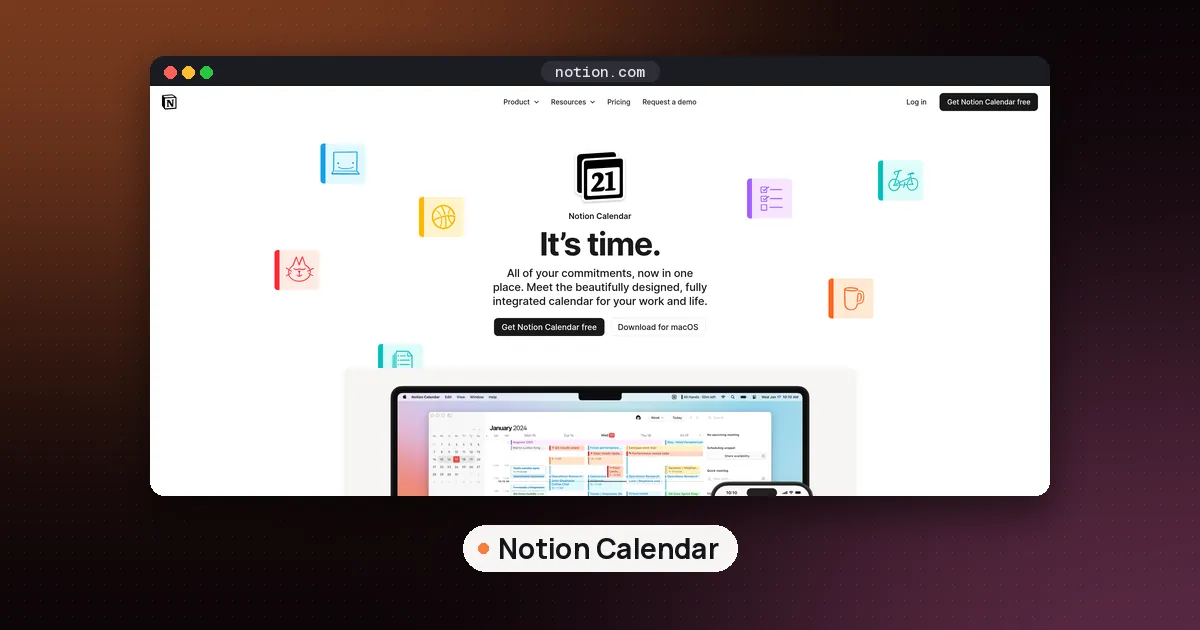
| Notion Calendar | A calendar app that shows Google, Outlook and iCloud calendars next to Notion database dates | Free on every plan |
| Notion Calendar AI connector (beta) | Lets Notion AI search your events and answer questions about them | Any Notion plan |
| AI Meeting Notes | Transcribes a meeting and writes a summary with action items, started from an event | Business or Enterprise, or an eligible mobile subscription |
Notion's pricing page lists Notion Calendar among the Free plan features and AI Meeting Notes under Business. Check that page for current per member prices, since monthly and yearly billing differ.
Step 1: Set up Notion Calendar
If you don't use Notion Calendar yet, download it for macOS, Windows, iPhone or Android from Notion's Calendar page, then sign in. Notion says the app syncs with Google Calendar accounts, Outlook calendars and Apple iCloud calendars, and it can show dates from your Notion databases (project timelines, task due dates) right beside your events. You can drag a database item to a new day to change its date without opening Notion.
Use the same email address for Notion Calendar that you use for your Notion workspace. The AI connector in the next step only works when the two match.
Step 2: Connect Notion Calendar to Notion AI
This is the part that makes your schedule searchable by AI. According to Notion's AI connector help page:
- In Notion, open Settings, then Notion AI.
- Select the + next to Notion Calendar.
- In the window that opens, select Start connection.
Search is available right away. New events show up in Notion AI's answers zero to thirty minutes after you create them, so a meeting you added a minute ago may not appear yet.
What to ask Notion AI about your calendar
Notion's own example prompts give a good sense of the range:
- "When is my next event?"
- "When are my doctor's appointments in September?"
- "Summarize my events for next week."
- "How often did I meet with Kiki this summer?"
A useful habit is asking questions that mix your schedule with your work, such as "Which meetings with the design team did I have this month?", then opening the related project pages yourself. To limit an answer to your schedule only, click All sources in Notion AI and narrow it to Notion Calendar.
Limits of the connector
- It's a beta. Notion says the connector is subject to beta terms.
- Only your primary email is accessed, and it must match your workspace email.
- No attachments. Notion AI can't read files attached to events.
- Each person sees only their own calendar. Notion says searches use an exact email match, so a teammate's AI can't read your events.
- Google Calendar connector conflict. If a workspace owner connects the separate Google Calendar connector, your Notion Calendar connection is disconnected and replaced. That Google connector needs a paid Google Workspace plan and a Notion Business or Enterprise plan, which is why the Notion Calendar connector is the route for everyone else.
To disconnect, go to Settings, Notion AI, click the gear next to Notion Calendar, then Disconnect. Notion says the content becomes unsearchable immediately and associated data is deleted within 24 hours.
Step 3: Add AI Meeting Notes to calendar events
This is where Notion's calendar becomes a meeting tool. AI Meeting Notes transcribes the call, then writes a summary with key points and action items. Notion's AI Meeting Notes help page lists the requirements: a Business or Enterprise plan (or an eligible mobile subscription that includes Notion AI), desktop app version 4.7.0 or later, and macOS 13 or later on a Mac.
Connect your calendar
You can start from three places:
- Notion sidebar: select Meetings, then Connect your calendar, and pick your provider.
- An AI Meeting Notes block: click the settings icon at the top of the block and choose Connect Calendar.
- Notion Calendar: click your profile icon, open Settings, choose your workspace under Notion workspaces, and pick a Default meetings database.
Choose a dedicated meeting notes database. The default syncs between Notion and Notion Calendar, so every note you start from an event lands in the same place.
The buttons you'll see on an event
Once you're connected, events show different actions depending on their state:
- AI meeting note: for an event with no participants or conferencing yet. Create a new note or link an existing page.
- Add meeting note: for an upcoming meeting with participants or a call link but no note.
- Open meeting note: when a note is already linked.
- Join and transcribe: appears starting 15 minutes before a meeting and opens the linked note (or creates one) so you can start transcribing.
- Transcribe meeting: the same, for events without conferencing details, such as an in person chat.
- View summary: after the meeting.
All day events don't get AI Meeting Notes. By default, Notion shows Join and transcribe when you're the organizer, when you created the linked note, or when it's a recurring event you transcribed before. Change this under Settings, Calendar accounts, your email, Preferred current meeting action. Notion notes this feature is still rolling out.
Settings worth turning on
- Automatically add AI Meeting Notes to new events. In Notion Calendar settings under your workspace, so every new meeting gets a page.
- Auto share with internal calendar event participants. Under Settings, Notion AI. Notes are private to you by default; this shares them with event participants who are members of your workspace.
- A default workspace per calendar account. Useful if your work and personal calendars belong to different workspaces.
Recording tips
AI Meeting Notes works best in the Notion desktop app, which captures both your microphone and system audio. Notion says the browser only transcribes your microphone, and the mobile app only hears what your phone's microphone picks up, so both suit in person meetings better than video calls on headphones. Write a few agenda lines under Notes before the meeting: Notion says the summary uses both the transcript and your notes. At least one minute of audio is needed for a summary, and you can upload AAC, M4A, MP3 or WAV recordings to an existing block if you recorded elsewhere. Speaker labels are English only, and the feature doesn't work offline.
For a wider view of meeting tools, see our best AI note taker for meetings guide.
A simple weekly routine with Notion AI calendar
Here is a setup that takes about ten minutes and pays off every week:
- Monday morning: ask Notion AI "Summarize my events for this week" and paste the answer at the top of a weekly planning page.
- Before each important call: open the event in Notion Calendar, click Add meeting note, and write three agenda lines.
- During the call: use Join and transcribe, then start the transcription.
- After the call: open View summary, turn action items into tasks in your database, and give each a due date so it shows up on your calendar.
- Friday: ask "Which meetings this week had action items?" and close the loop.
When Notion AI calendar isn't enough
Notion's calendar AI reads and summarizes. Notion's help pages describe searching and answering questions about events, not planning your week for you. If you want software that moves tasks and focus time around your meetings automatically, look at an auto scheduler. Reclaim and Motion are compared in Motion vs Reclaim, and Morgen can pull Notion tasks into a daily plan you approve. Our best AI calendar planner guide ranks them by planning style.
If you're still deciding on Notion itself, our best AI note taking app roundup and Heptabase vs Notion comparison cover the alternatives.
FAQ
Is Notion Calendar free?
Yes. Notion lists Notion Calendar as part of the Free plan, and the AI connector is available on any Notion plan. AI Meeting Notes is the part that needs Business or Enterprise.
Can Notion AI create calendar events for me?
Notion's connector help page describes Notion AI searching and answering questions about your events. It doesn't describe creating or moving events, so plan on adding events yourself in Notion Calendar.
Does Notion Calendar work with Outlook?
Yes. Notion says Notion Calendar syncs with Google Calendar accounts, Outlook calendars and Apple iCloud calendars.
Why isn't my new event showing up in Notion AI?
New events can take up to thirty minutes to become searchable. Also check that your Notion Calendar email matches your workspace email.
Can my teammates see my AI meeting notes?
Not by default. Notes created from a calendar event are private to you unless you turn on auto sharing with internal participants or share them manually.
Notion Calendar or Google Calendar?
Use Notion Calendar if you want Notion dates and AI Meeting Notes next to your events. It syncs with your Google account, so you aren't giving up Google Calendar, only viewing it through a different app.